> For the complete documentation index, see [llms.txt](https://docs.live-eo.com/tradeaware/llms.txt). Markdown versions of documentation pages are available by appending `.md` to page URLs; this page is available as [Markdown](https://docs.live-eo.com/tradeaware/using-the-tradeaware-web-app/settings-guide.md).
# Settings Guide
The **Settings** panel holds your account and organisation configuration. Use it to keep details current, manage the legal entity that files your DDS in TRACES, invite colleagues, and connect integrations.
**Accessing Settings**\
Open **Settings** via your button in the top-right , and click 'Settings' in the menu. Once open, depending on your account's entitlements, you will see the following options:
* [#profile-details](#profile-details "mention")
* [#contract-and-usage](#contract-and-usage "mention")
* [#business-information](#business-information "mention")
* [#team-members](#team-members "mention")
* [#workspaces](#workspaces "mention")
* [#api-access](#api-access "mention")
* [#webhooks](#webhooks "mention")
***
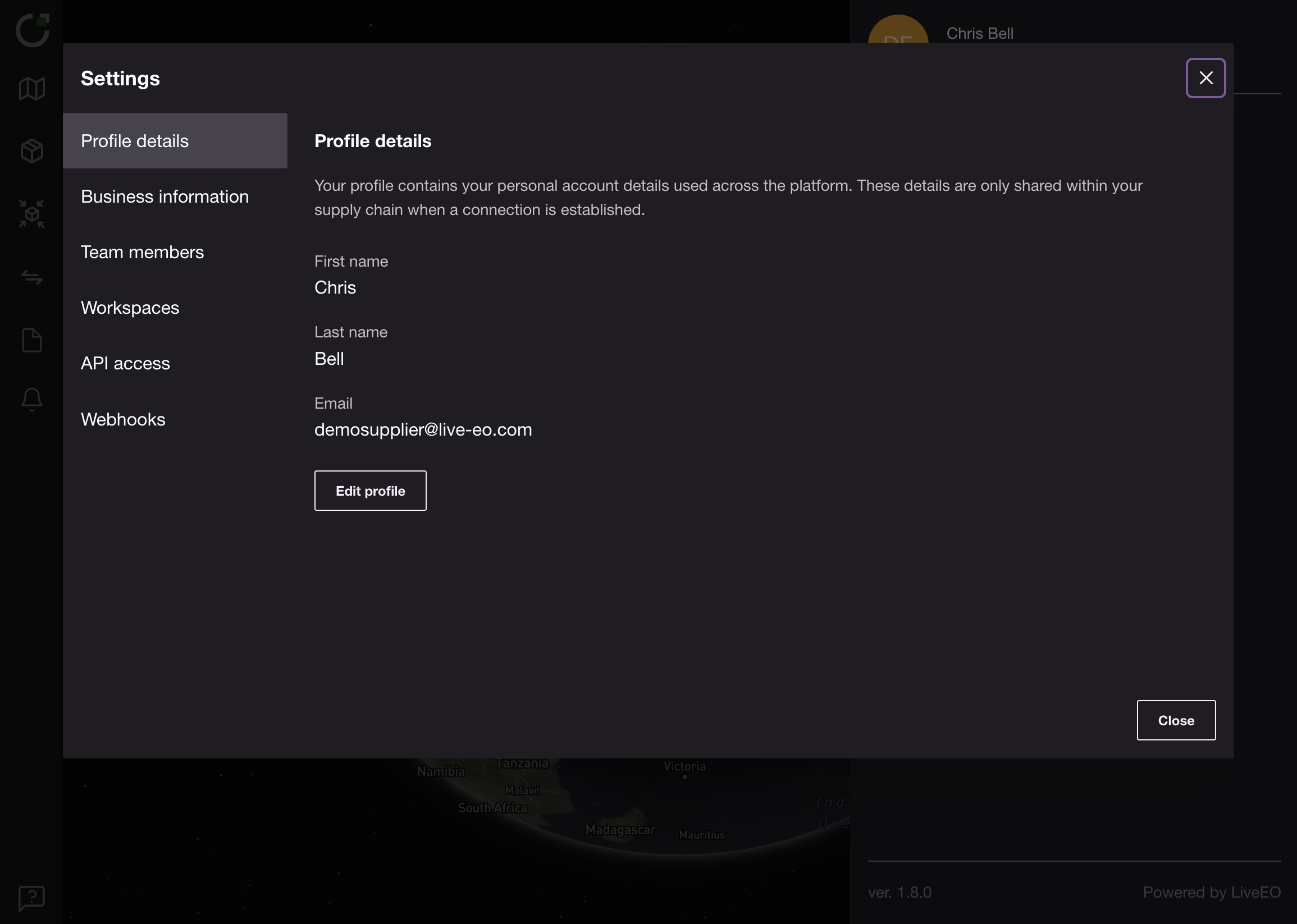
### Profile details
This section contains your personal account information shown across the platform and in supply-chain connections.
**You can**
* Review your **name** and **email**
* **Edit your name**
***
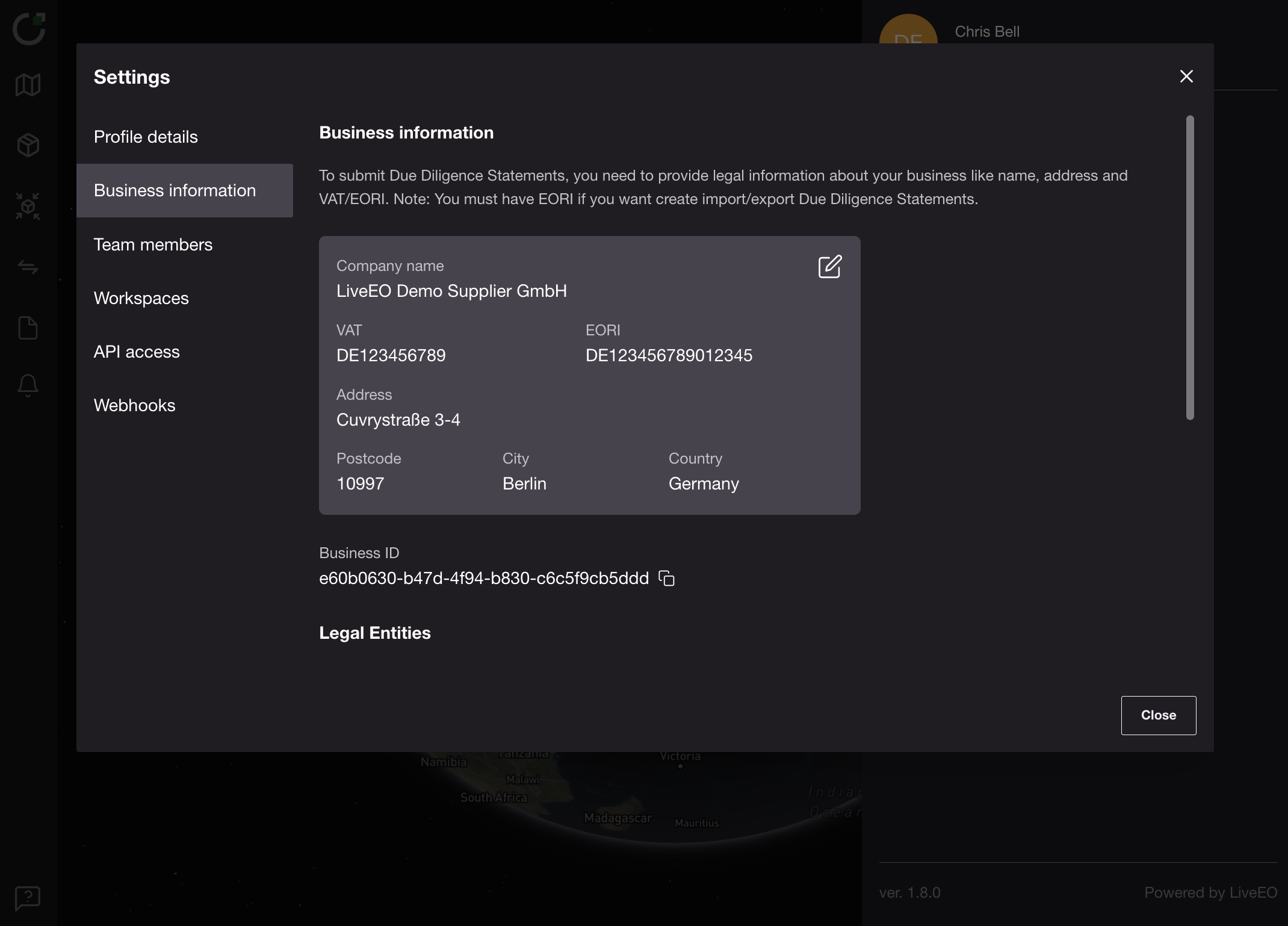
### Business information
This section shows your organisation’s business information that is shared with connections and used for submitting due diligence statements to TRACES.
**You can**
* Edit and update **Company name**, **VAT**, **EORI**, **address** and **country**
* Copy your **Business ID** (account identifier) when needed for support
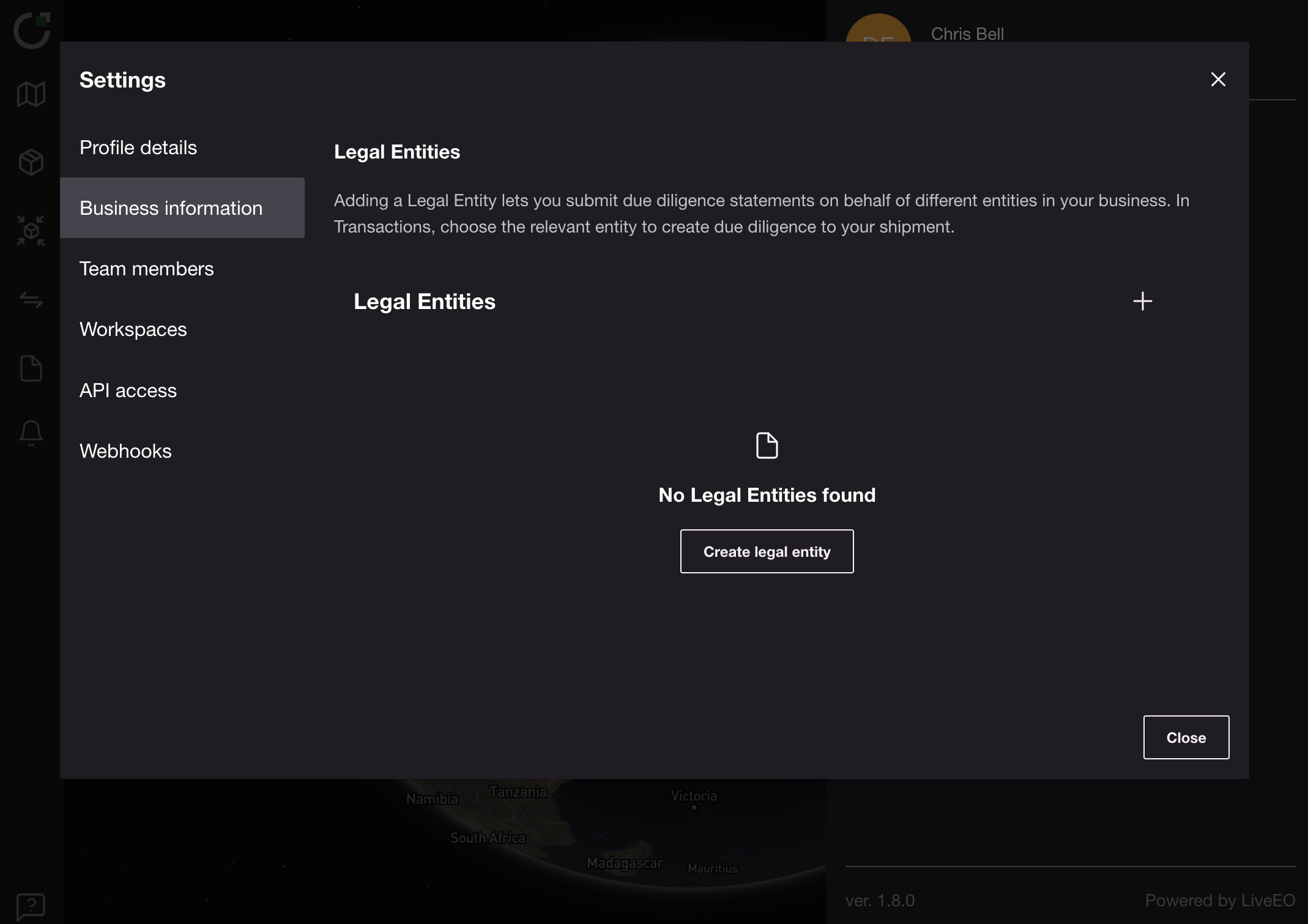
#### Legal Entities
Register the **legal entities** (subsidiaries/branches) that may file DDS on behalf of your business. Selecting the correct legal entity per transaction ensures the right business details are sent to TRACES.
**You can**
* **Create** a legal entity (name, address, postcode, city, country code, **EORI** and/or **VAT**, optional email)
* **Edit** or **remove** an entity when details change
* In **Create a transaction**, choose **Select legal entity** to decide who files the DDS
* See the responsible entity in the **Legal entity** column of the Transactions table
**Notes**
* If no entity is selected, the system **defaults to the first legal entity you registered** for your business
* **EORI is required** for **Import/Export**; **VAT** can be used for **Domestic/Trade**
***
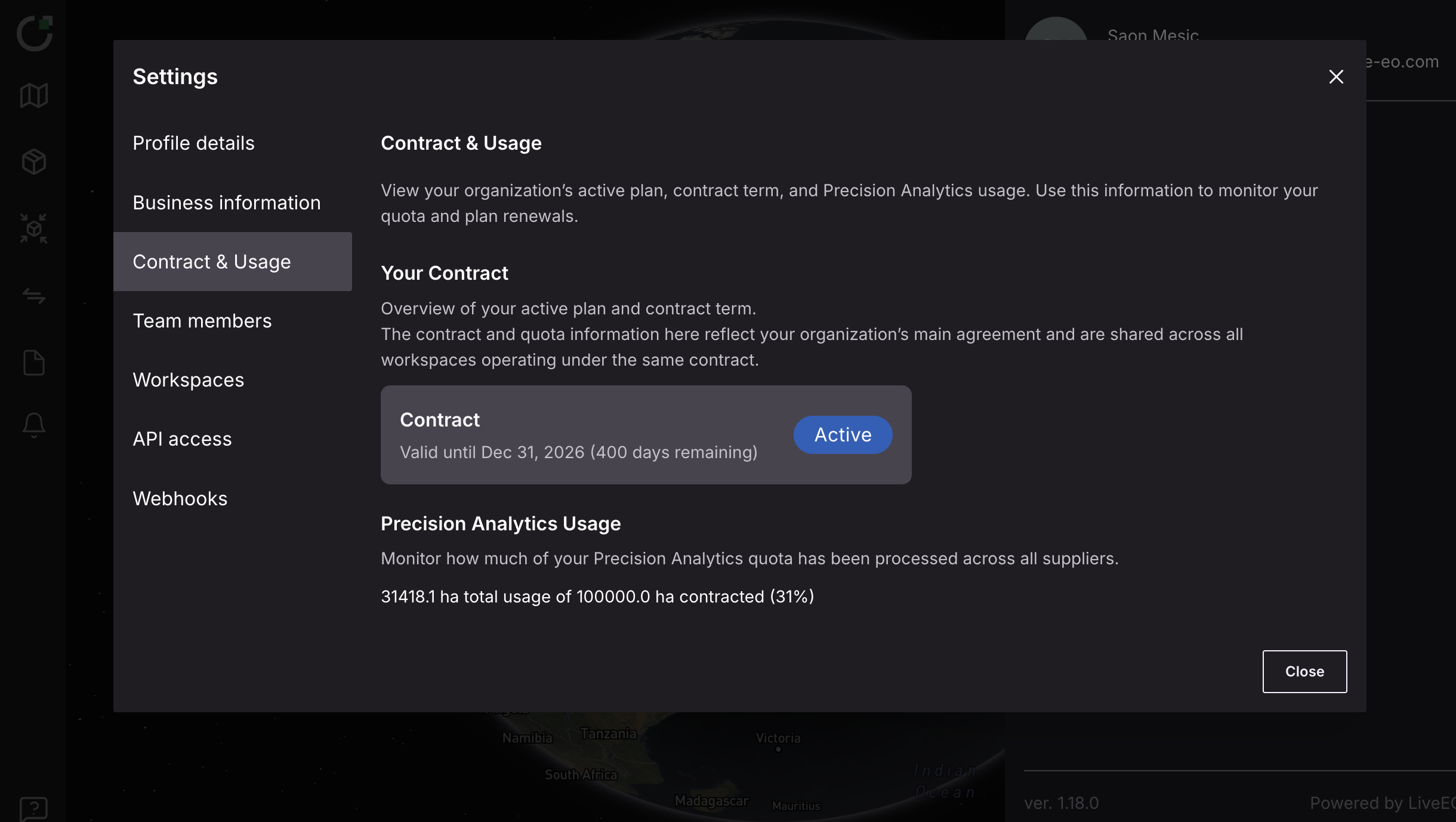
### Contract and Usage
This section shows details of your contract and usage of Precision Analytics, where relevant.
***
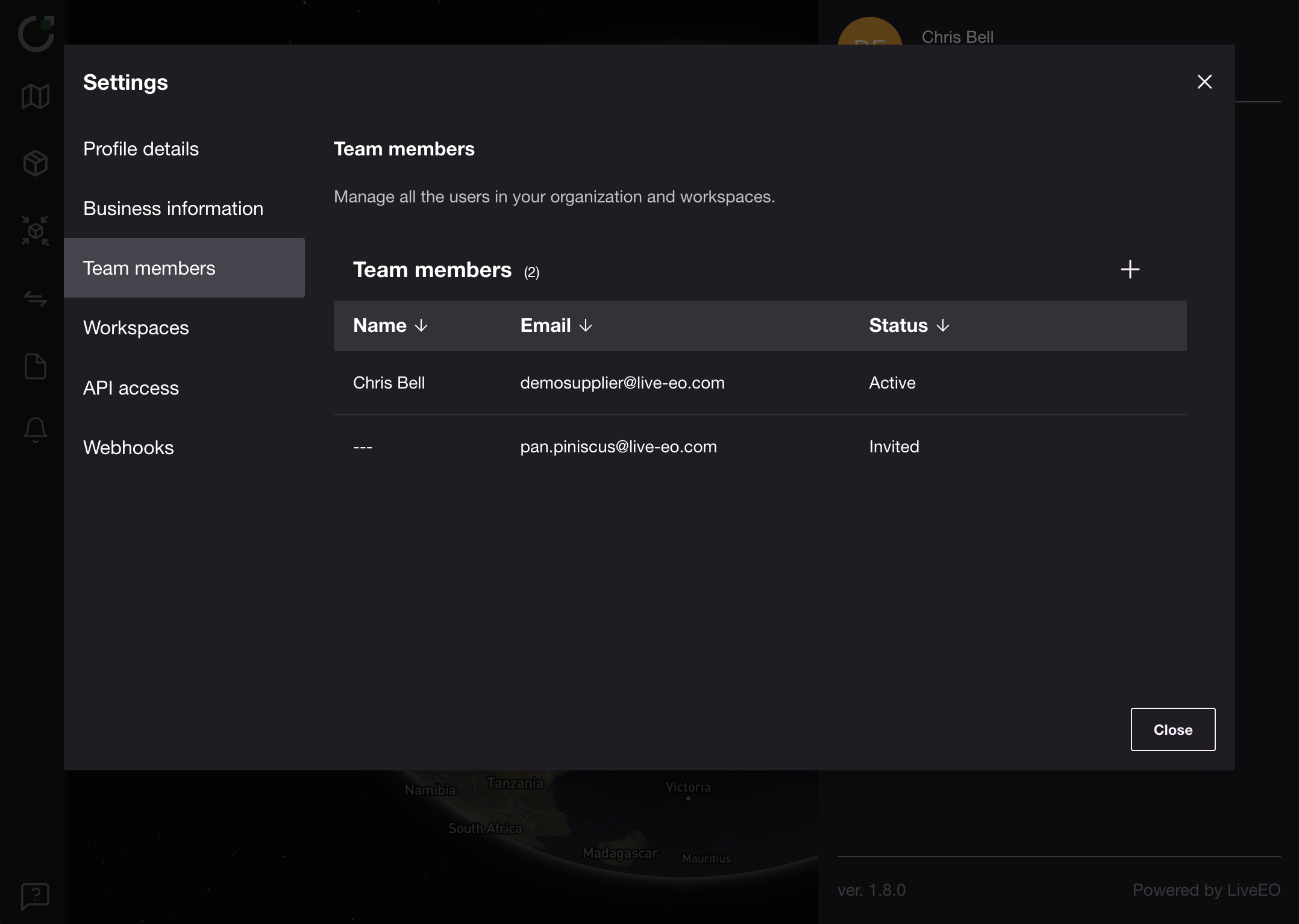
### Team members
This section allows you to manage the team that you work with in TradeAware.
**You can**
* **Invite** new users and manage their **status** (Active/Invited)
***
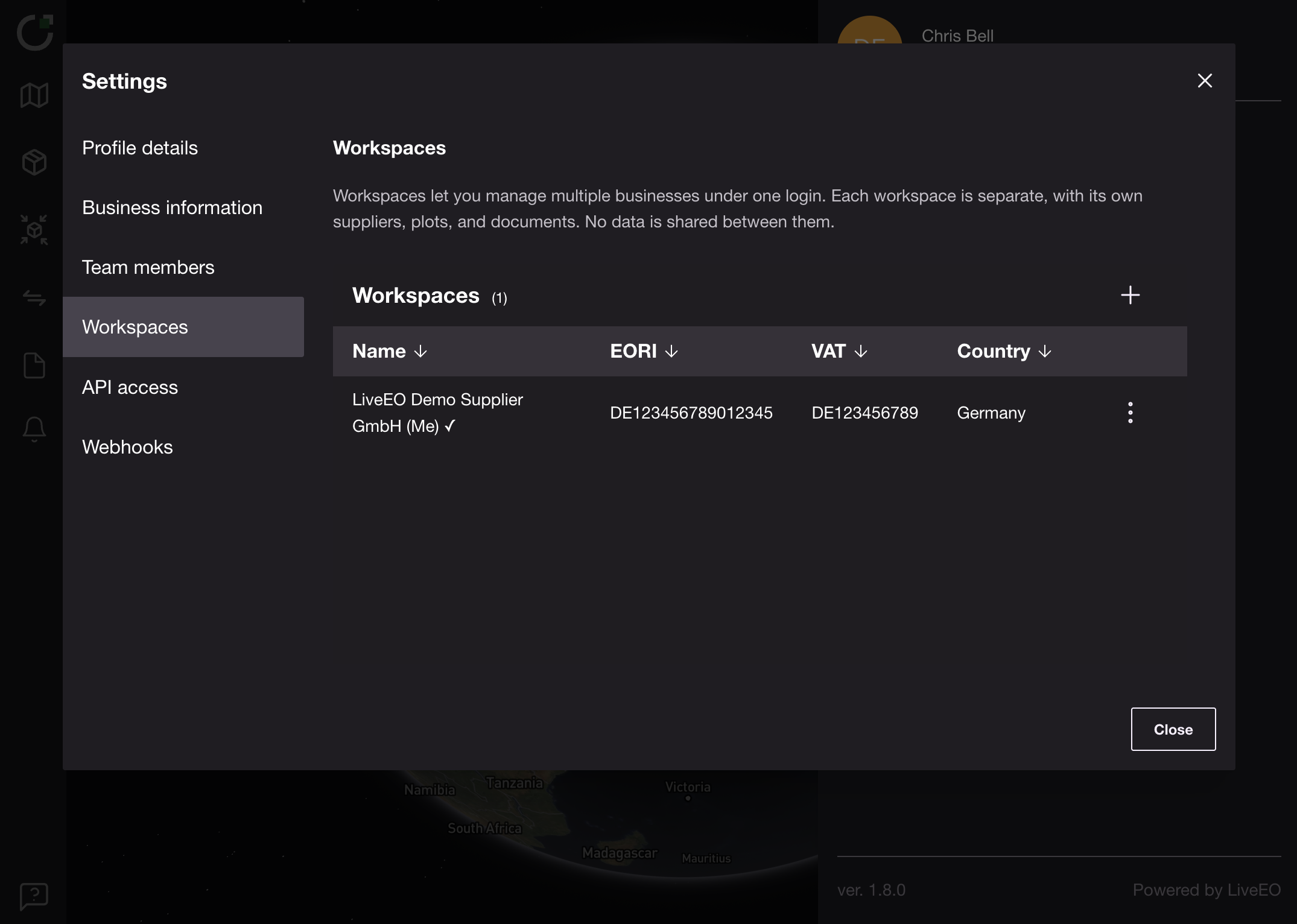
### Workspaces
This section shows separate business areas under one login. Each workspace has its own suppliers, plots, transactions, and documents—data is not shared between them. For more information see [Managing Workspaces](/tradeaware/using-the-tradeaware-web-app/settings-guide/managing-workspaces.md)
**You can**
* **Create** a new workspace when you need an isolated data area
* **Switch** between workspaces
* View each workspace’s **EORI**, **VAT** and **Country**
**Tip:** Make sure you are in the correct workspace before creating or submitting transactions.\
More details: *Managing Workspaces* →
***
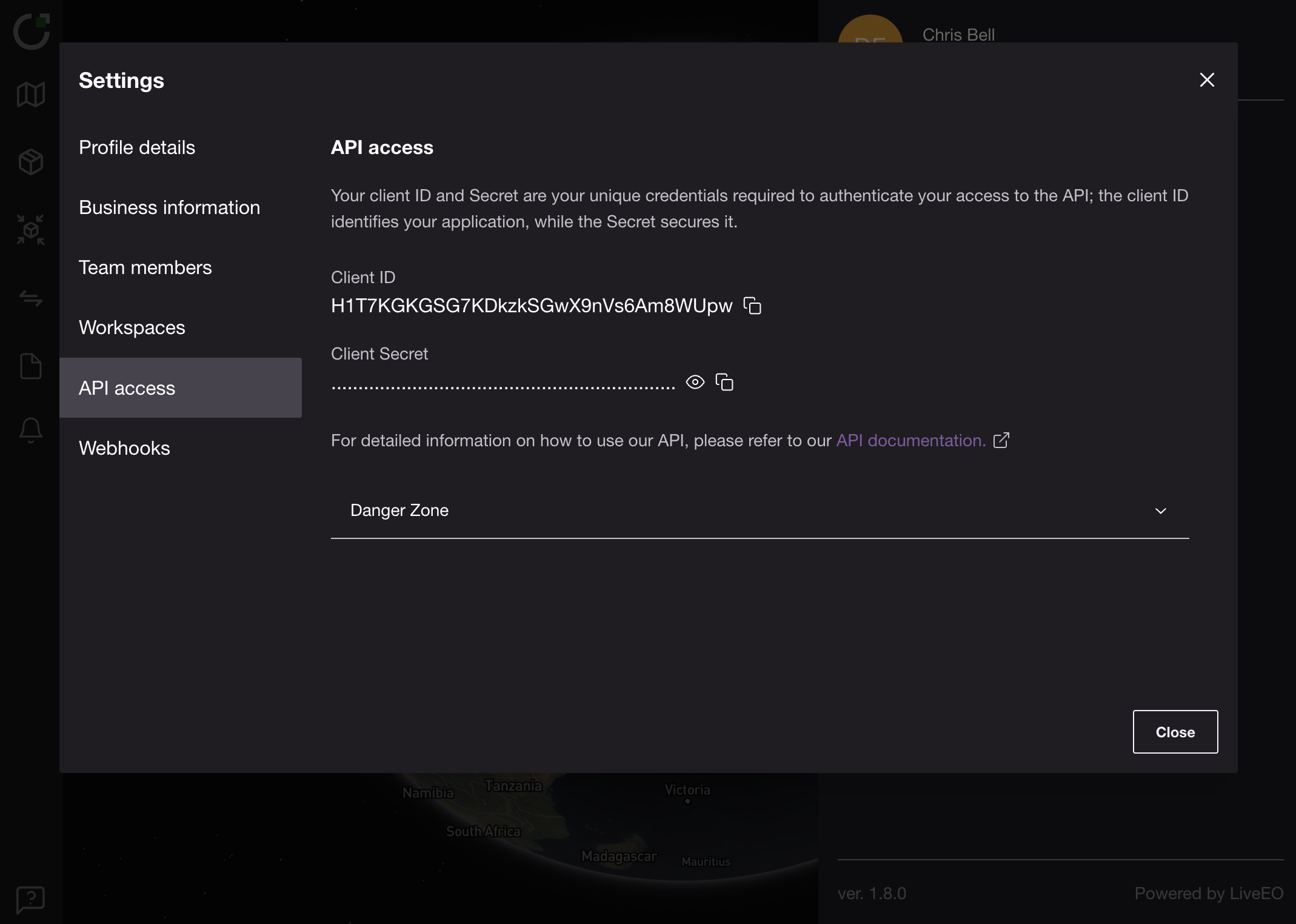
### API access
This section shows credentials for integrating your systems with TradeAware. For more information see [API Access and Business Account Registration](/tradeaware/using-the-tradeaware-api/api-access-and-business-account-registration.md)
**You can**
* View / copy your **Client ID** and **Client Secret**
* **Rotate** credentials if required
* Open the **API documentation** to implement or update your integration
***
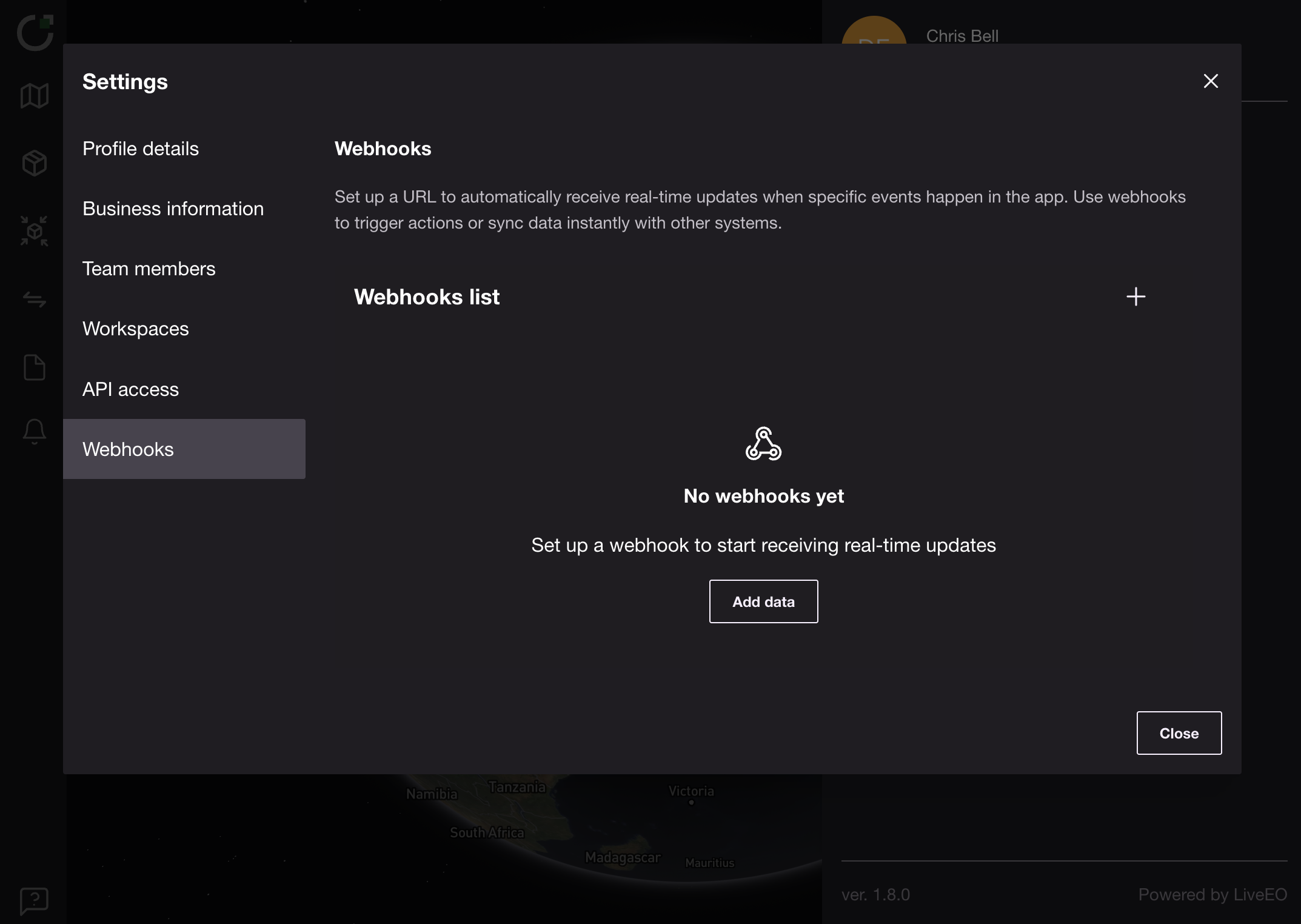
### Webhooks
This section shows outbound notifications for events in TradeAware. For more information see [Webhooks](/tradeaware/using-the-tradeaware-api/api-reference/webhooks.md)
**You can**
* **Add** a webhook URL
* Monitor **Status** and **Error rate**
* **Replace** or **pause** endpoints during maintenance
***
**Language**
This section lets you choose the display language of the TradeAware web app. TradeAware is available in English and German.
Note: Questionnaire questions are authored content and are currently shown in English regardless of your language setting.
***
### FAQs (additions)
**What’s the difference between my Business and a Legal Entity?**\
Your Business is your TradeAware account. A Legal Entity is a registered record (name, address, EORI/VAT) that can file a DDS in TRACES. One business can contain multiple legal entities.
**Why do I need a Legal Entity on a transaction?**\
TRACES requires the exact legal entity responsible for the filing so the correct name, address, and EORI/VAT appear on the DDS. Each transaction must specify one legal entity (the DDS primary actor).
**Do I need a separate supplier list per legal entity?**\
No. Suppliers and transactions are shared at account level. You simply choose the filing **legal entity** per transaction.
**Can I use TradeAware in German?**
Yes. Switch the app language in Settings → Language. All interface elements, maps, and notifications will display in German. Questionnaire questions currently remain in English.
---
# Agent Instructions
This documentation is published with GitBook. GitBook is the documentation platform designed so that both humans and AI agents can read, navigate, and reason over technical content effectively. Learn more at gitbook.com.
## Querying This Documentation
If you need additional information that is not directly available in this page, you can query the documentation by asking a question.
Perform an HTTP GET request on the following URL with the `ask` and `goal` query parameters:
```
GET https://docs.live-eo.com/tradeaware/using-the-tradeaware-web-app/settings-guide.md?ask=&goal=
```
`ask` is the immediate question: it should be specific, self-contained, and written in natural language.
`goal` is what the user is ultimately trying to achieve, the reason they need the answer. Sharing it helps GitBook give you a better, more relevant answer. A goal is most helpful when it describes the outcome the user wants rather than restating the question. For example, with `ask=how do I create an API token`, a goal like `automate deployments from our CI pipeline` lets GitBook tailor the answer to that use case.
The response will contain a direct answer to the question and relevant excerpts and sources from the documentation.
Use this mechanism when the answer is not explicitly present in the current page, you need clarification or additional context, or you want to retrieve related documentation sections.
 , and click 'Settings' in the menu. Once open, depending on your account's entitlements, you will see the following options:
* [#profile-details](#profile-details "mention")
* [#contract-and-usage](#contract-and-usage "mention")
* [#business-information](#business-information "mention")
* [#team-members](#team-members "mention")
* [#workspaces](#workspaces "mention")
* [#api-access](#api-access "mention")
* [#webhooks](#webhooks "mention")
***
### Profile details
This section contains your personal account information shown across the platform and in supply-chain connections.
**You can**
* Review your **name** and **email**
* **Edit your name**
, and click 'Settings' in the menu. Once open, depending on your account's entitlements, you will see the following options:
* [#profile-details](#profile-details "mention")
* [#contract-and-usage](#contract-and-usage "mention")
* [#business-information](#business-information "mention")
* [#team-members](#team-members "mention")
* [#workspaces](#workspaces "mention")
* [#api-access](#api-access "mention")
* [#webhooks](#webhooks "mention")
***
### Profile details
This section contains your personal account information shown across the platform and in supply-chain connections.
**You can**
* Review your **name** and **email**
* **Edit your name**