> For the complete documentation index, see [llms.txt](https://docs.live-eo.com/tradeaware/llms.txt). Markdown versions of documentation pages are available by appending `.md` to page URLs; this page is available as [Markdown](https://docs.live-eo.com/tradeaware/using-the-tradeaware-web-app/settings-guide/managing-workspaces.md).
# Managing Workspaces
Managing Multiple Entities with Workspaces
## What is Workspace Management in TradeAware?
**Workspace Management** is a simple and secure way to support companies that operate with multiple units —such as subsidiaries, business units, or regional branches.
With this feature, users can access multiple of these entities under a **single TradeAware login**. It enables users who need access to more than one entity —like group HQ, procurement, or compliance teams—to easily **access, switch between, and manage** these, without the need to create separate accounts.
**No data is shared between workspaces**, ensuring compliance and privacy, while still making it easy to act on behalf of more than one entity.
#### Why it's important
* **Instant setup**: Create new business entities yourself—no need for invitation emails or admin steps.
* **Clear separation**: Each workspace holds its own suppliers, transactions, and settings.
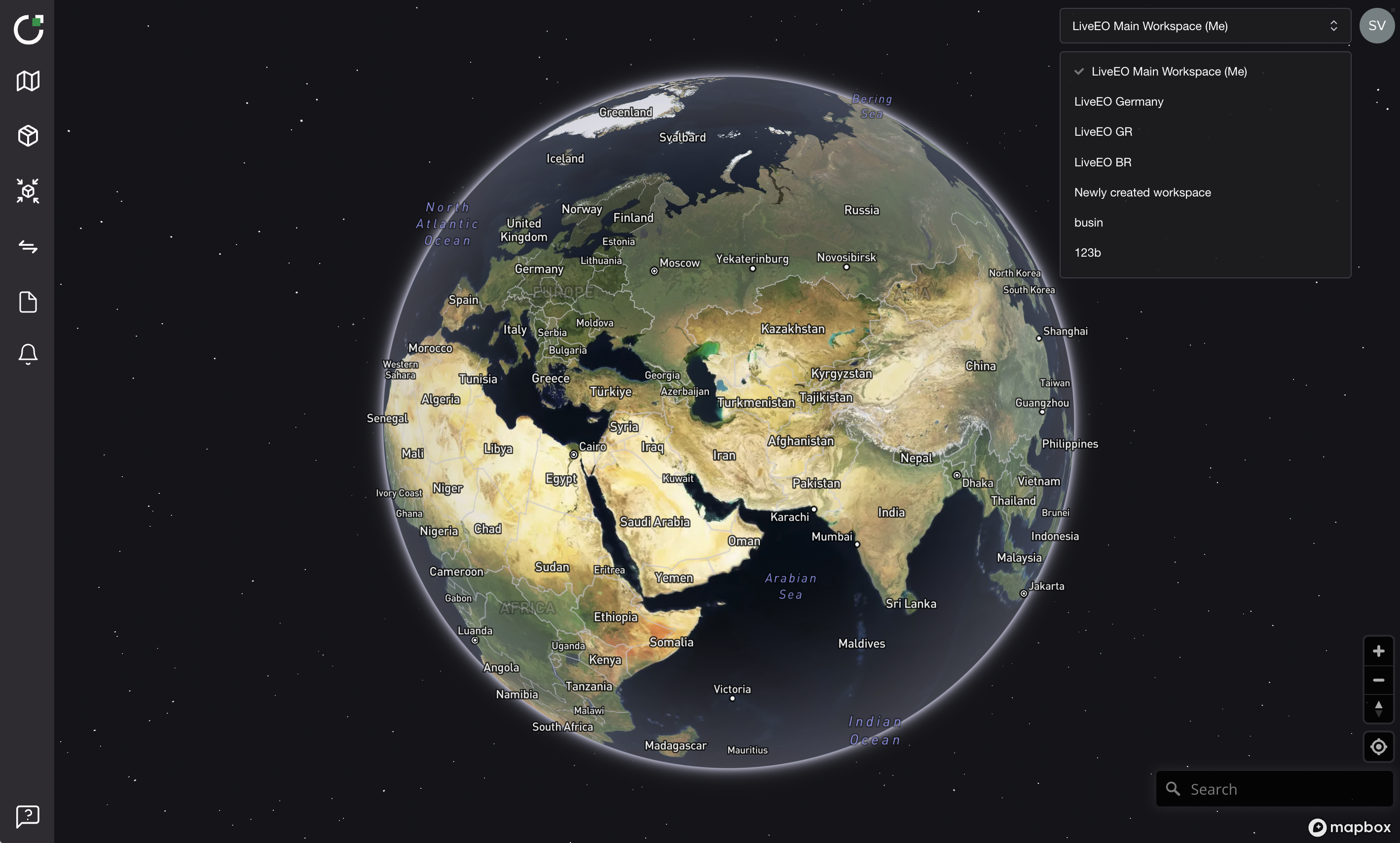
* **Simple switching**: Move between entities with a dropdown—no need to log out and back in.
* **Better coordination**: Teams across countries or legal structures can work together more efficiently.
## How to create a new workspace
### Option 1: Create a new workspace
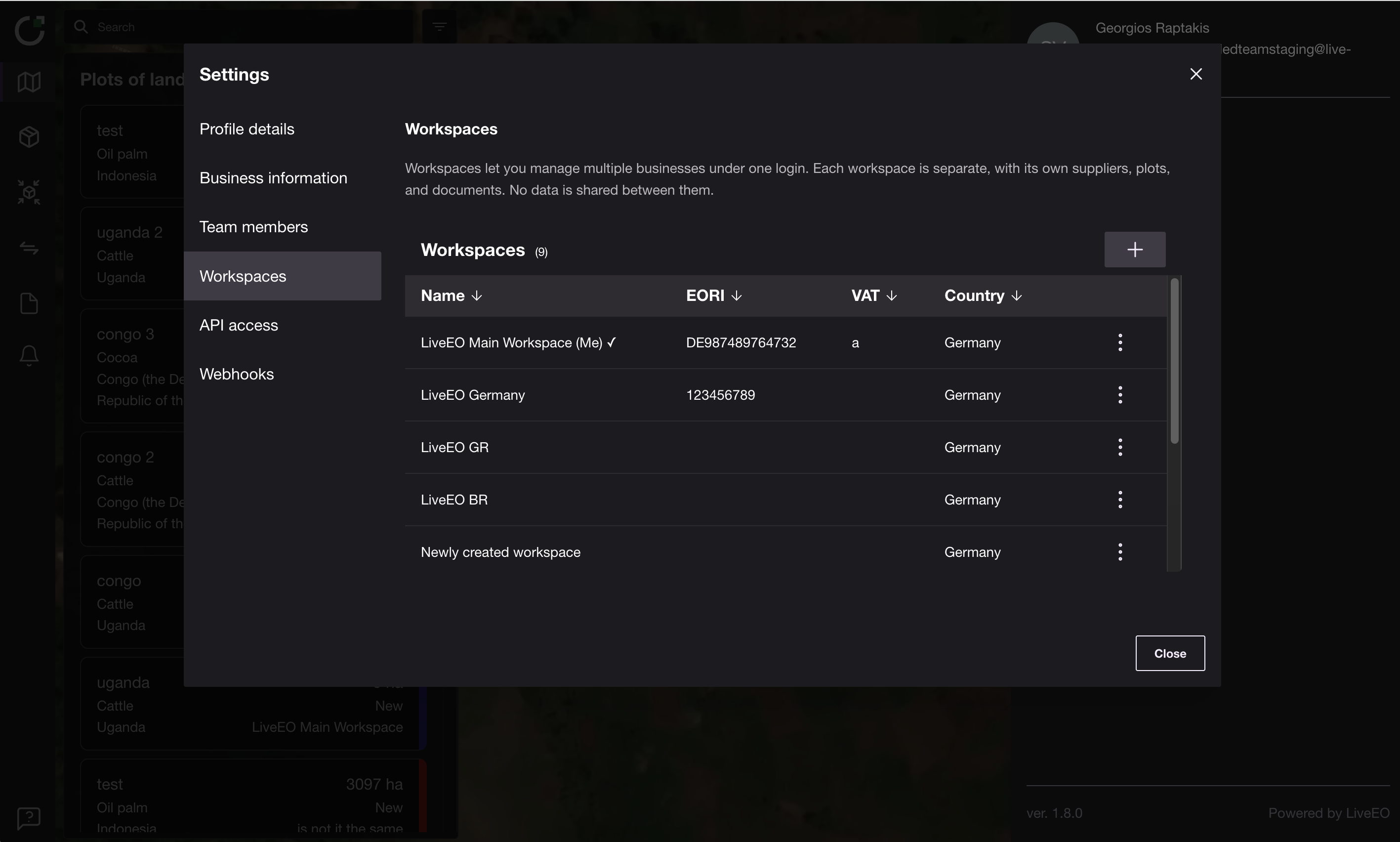
You can create additional Workspaces from inside your account:
* Open your **Settings**.
* Go to **Workspaces** in the left-hand menu.
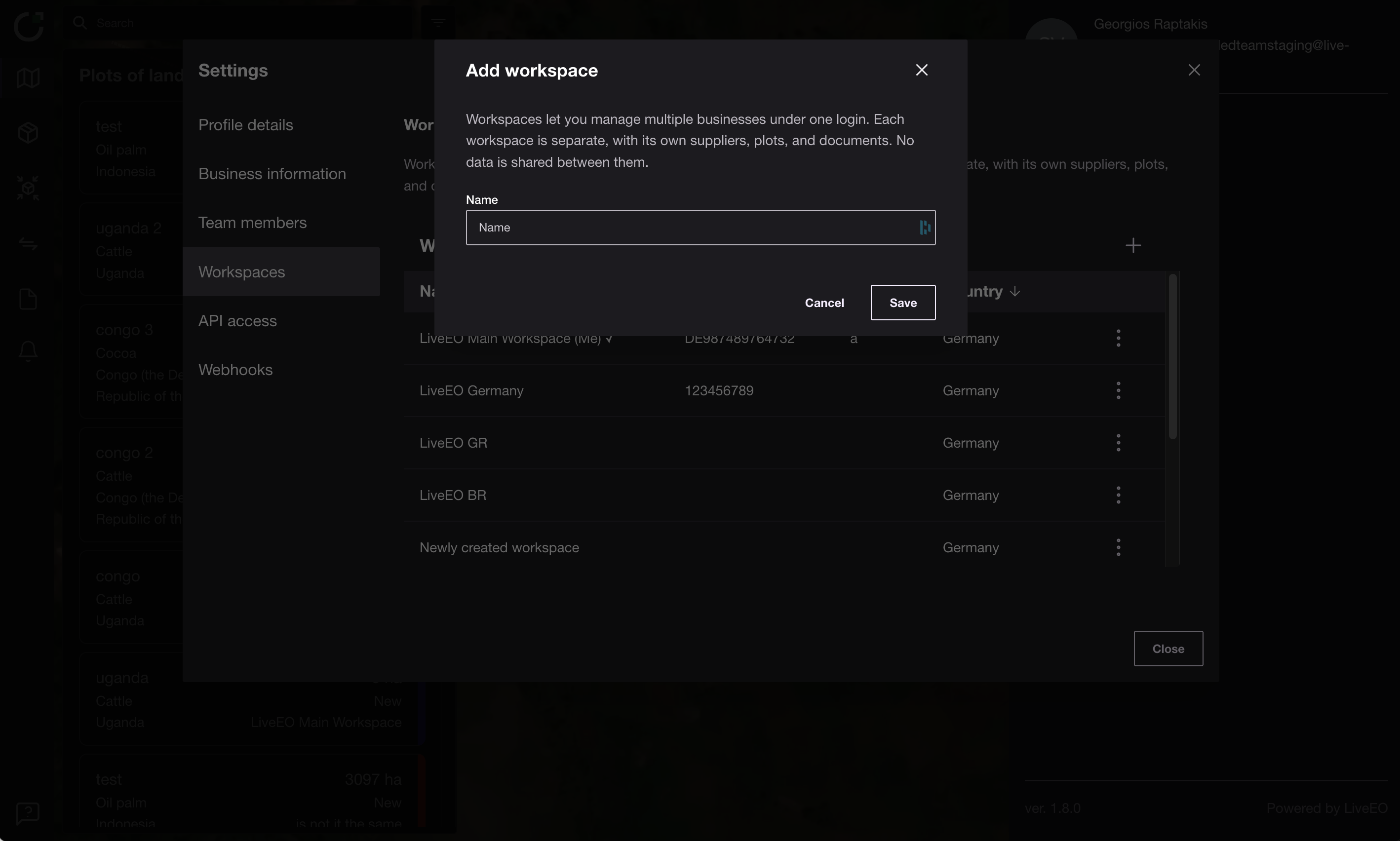
* Click the **“+”** button in the top-right corner.
* Give your workspace a name.
* After saving, it will appear in your workspace list.
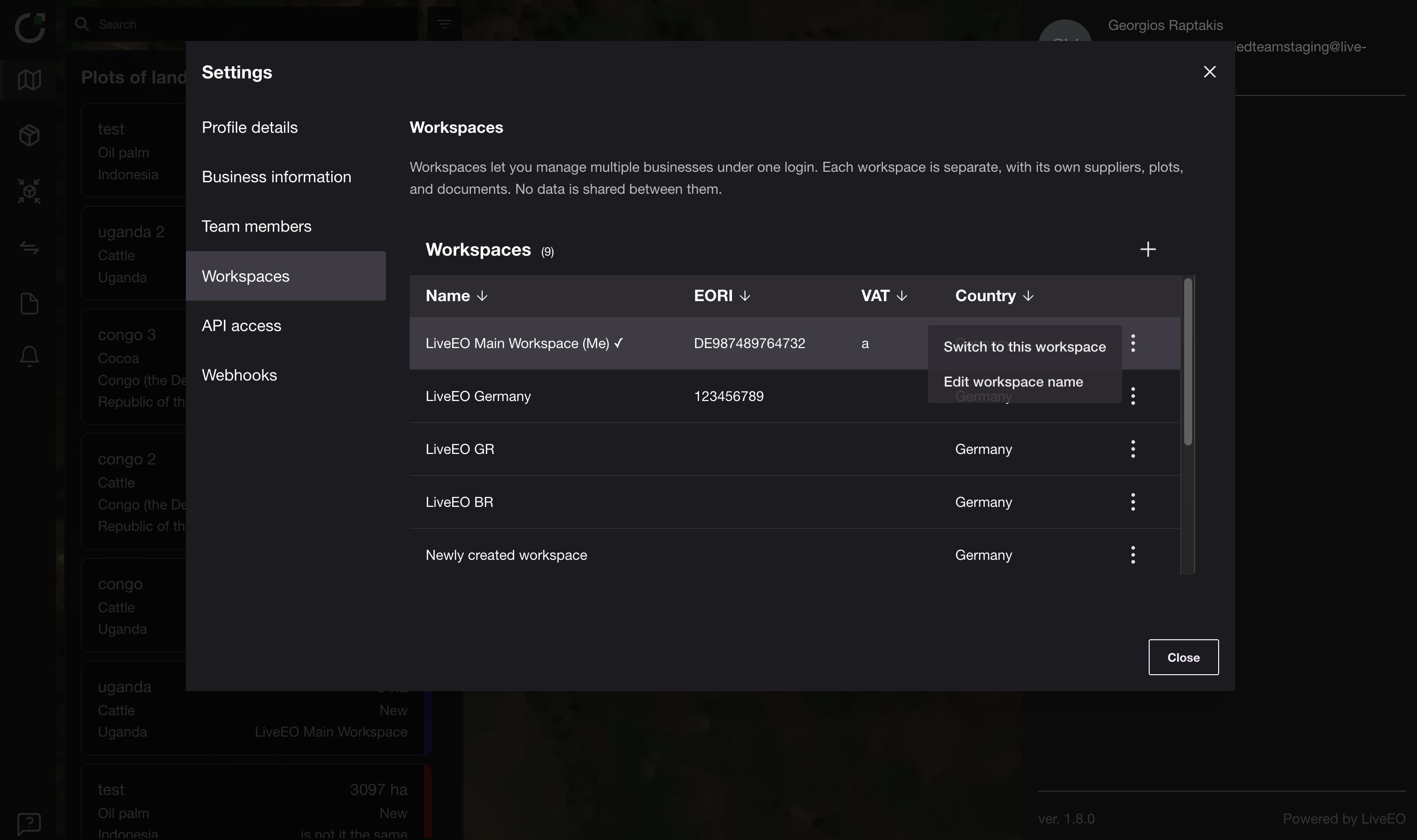
> **Tip:** You can rename a workspace anytime via the three-dot menu next to it and select **“Switch to this workspace”**..
#### Add Business Information to a Workspace
Once your workspace is created:
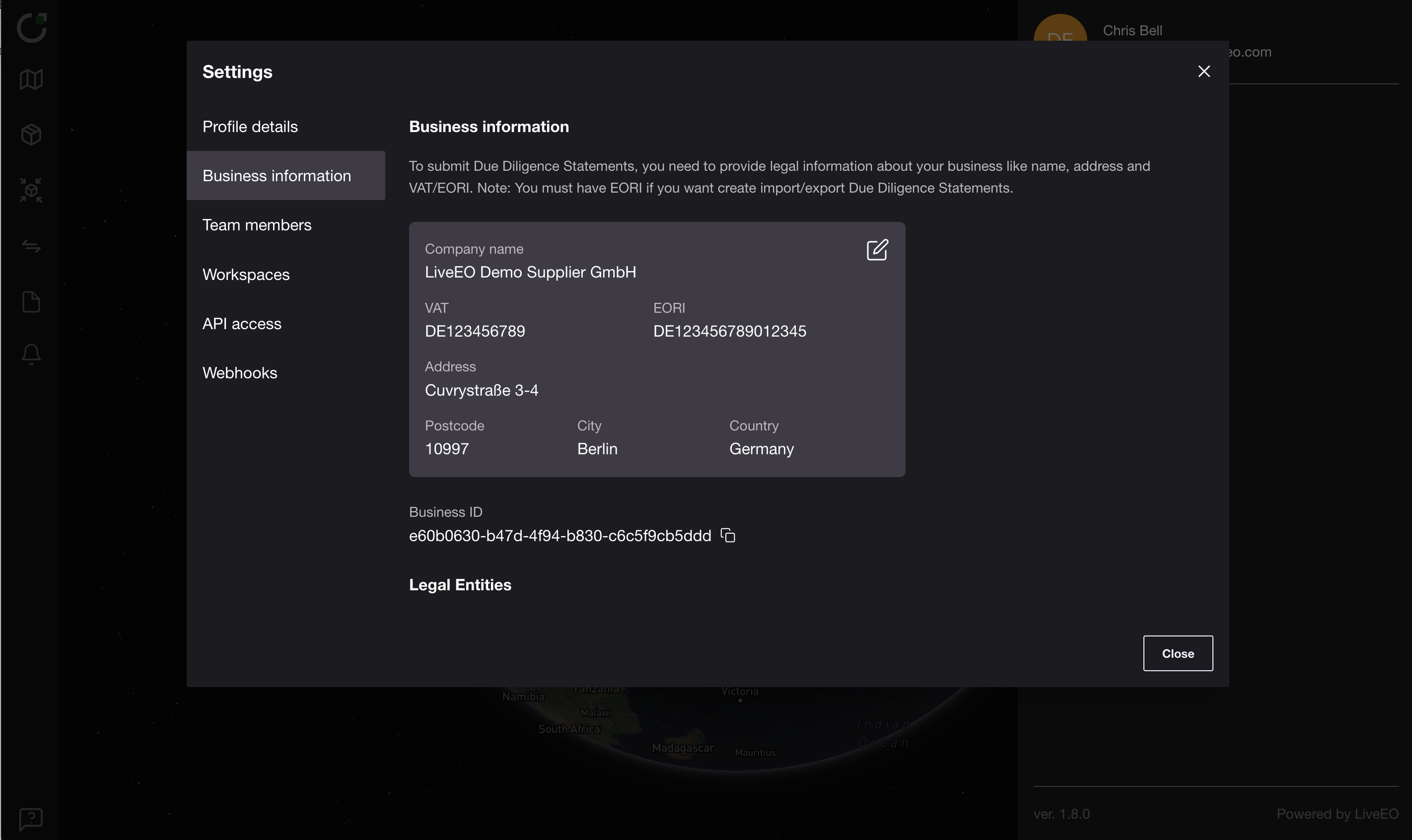
1. Go to **Settings > Business information**.
2. Enter the legal business details required to generate Due Diligence Statements (DDS):
* Company name
* Address (street, city, postcode, country)
* VAT or EORI number (required for import/export DDS)
> Each workspace must have its **own** business information. This is crucial for DDS generation and supplier identification.
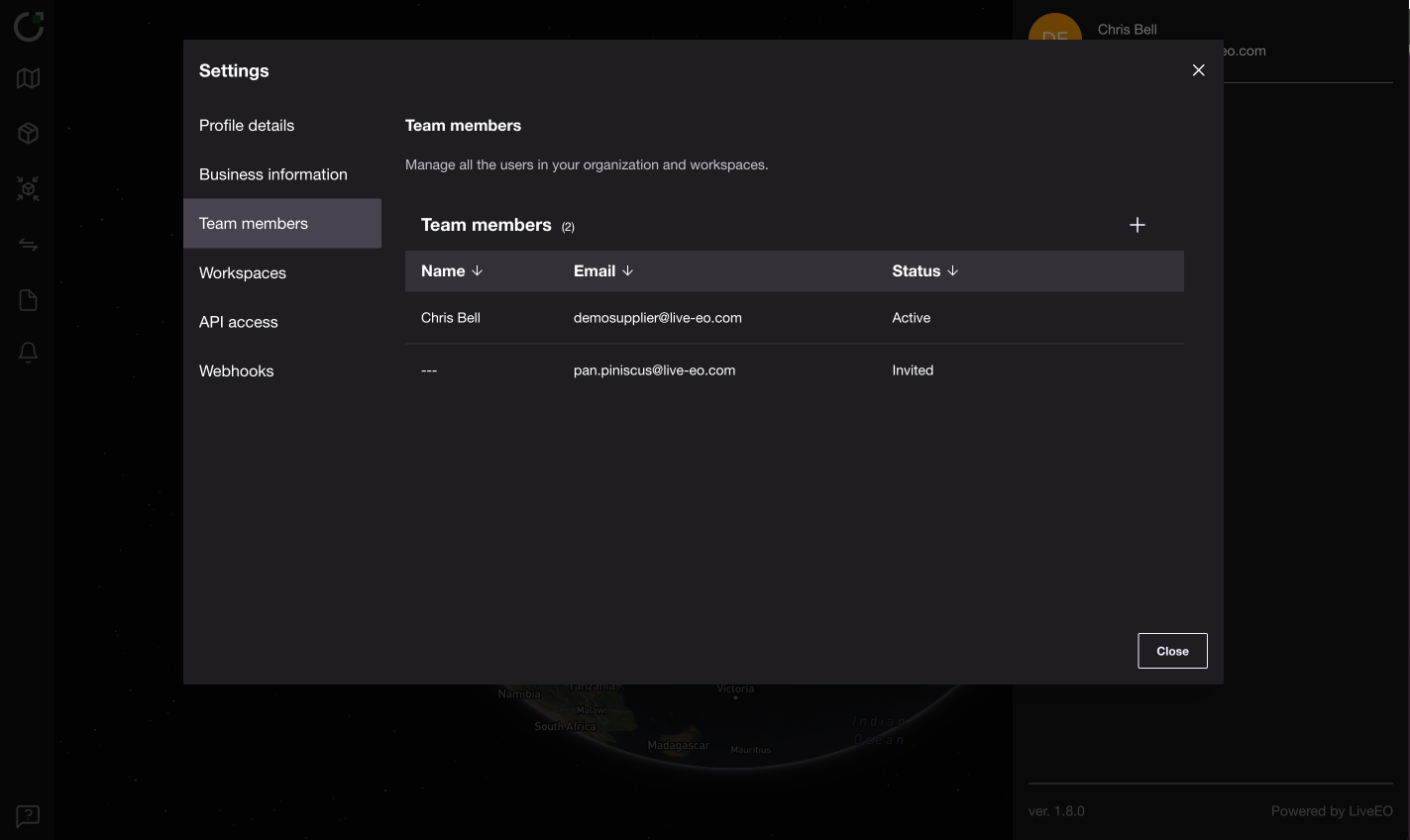
#### Invite Team Members to a Workspace
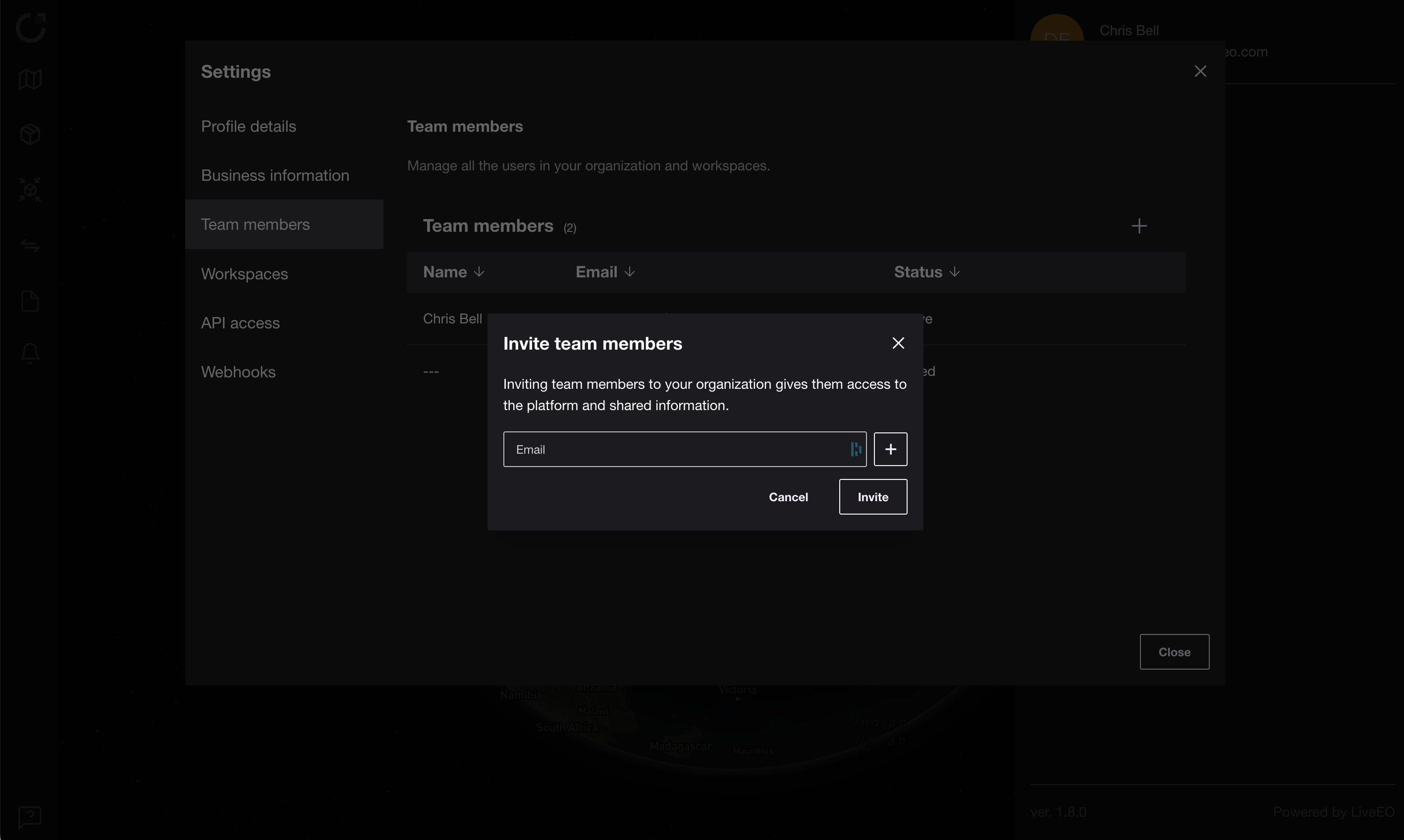
1. Inside your active workspace, go to **Settings > Team members**.
2. Click **“+” Invite** and enter the email address of the team member.
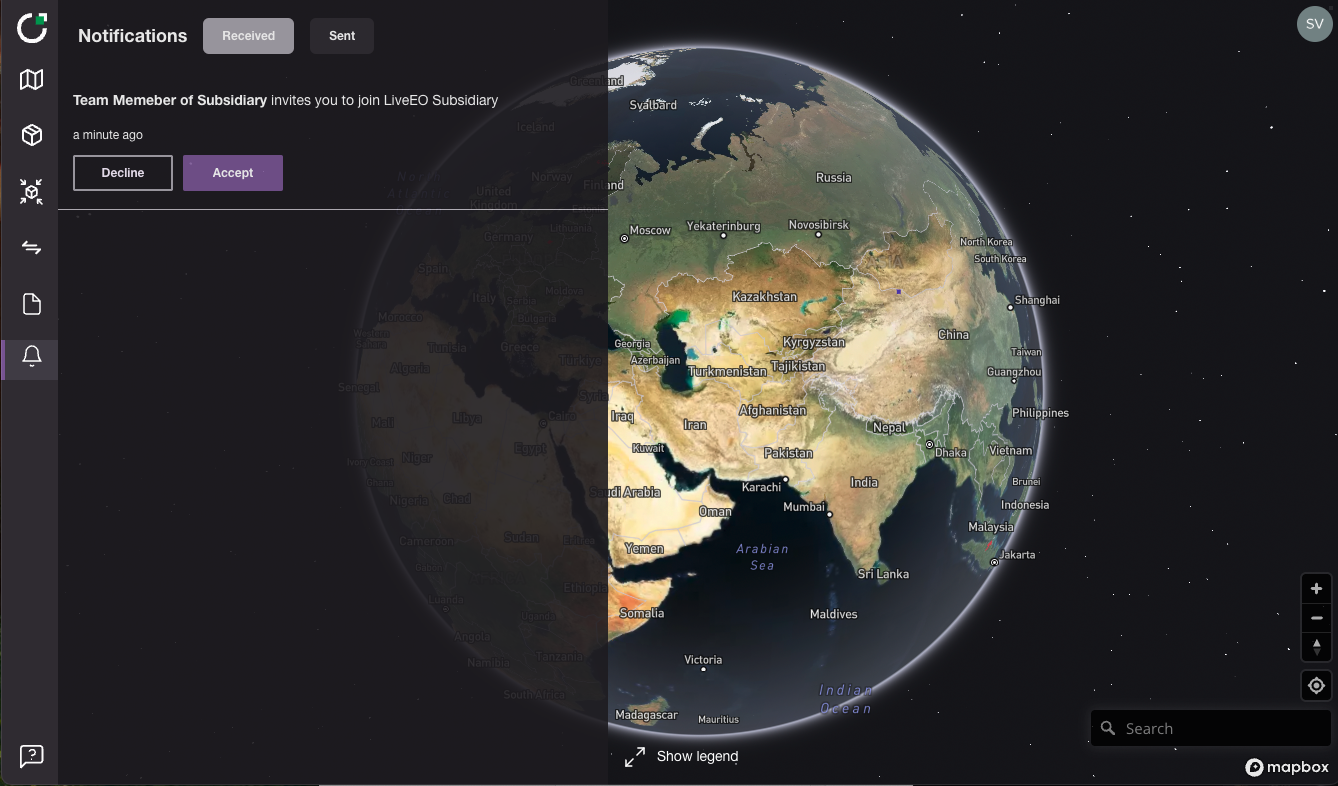
3. Once invited, they will receive:
* An email invitation
* An in-app notification (🔔)
After accepting, they’ll be able to switch between workspaces in their own account, depending on their permissions.
> You can add both new and existing TradeAware users to any workspace.
### Option 2: Join an existing workspace via invitation
You can also be added to other existing workspaces:
1. **One entity invites a team member from another entity** to join their workspace.
2. The invited user gets an email and a notification in their **🔔 Notification panel** inside the app.
3. After accepting the invitation, they can simply **toggle between workspaces** via the dropdown in the top-right corner.
This method is useful when multiple teams set up their own workspaces and want to collaborate with shared users like HQ leads or auditors.
---
# Agent Instructions
This documentation is published with GitBook. GitBook is the documentation platform designed so that both humans and AI agents can read, navigate, and reason over technical content effectively. Learn more at gitbook.com.
## Querying This Documentation
If you need additional information that is not directly available in this page, you can query the documentation by asking a question.
Perform an HTTP GET request on the following URL with the `ask` and `goal` query parameters:
```
GET https://docs.live-eo.com/tradeaware/using-the-tradeaware-web-app/settings-guide/managing-workspaces.md?ask=&goal=
```
`ask` is the immediate question: it should be specific, self-contained, and written in natural language.
`goal` is what the user is ultimately trying to achieve, the reason they need the answer. Sharing it helps GitBook give you a better, more relevant answer. A goal is most helpful when it describes the outcome the user wants rather than restating the question. For example, with `ask=how do I create an API token`, a goal like `automate deployments from our CI pipeline` lets GitBook tailor the answer to that use case.
The response will contain a direct answer to the question and relevant excerpts and sources from the documentation.
Use this mechanism when the answer is not explicitly present in the current page, you need clarification or additional context, or you want to retrieve related documentation sections.