Open Source Deforestation Methodology

Open Source Deforestation Checks allow you to identify potential signs of deforestation or forest degradation on your plots using reliable public datasets. This provides a quick first-pass assessment so you can prioritize which plots may require further investigation, understand the possible issue, and avoid sending every plot to Precision Analytics unnecessarily.

1) The open-source layers

These layers answer two practical questions:

  1. What was on the ground at the EUDR cutoff (Dec 2020)?

  2. Did something change after the cutoff?

In this release, the “change” layer is complemented by two additional baseline layers that help interpret what the change might mean depending on commodity context.

Global Forest Cover (2020) – “Was this forest at the cutoff?”

Purpose: A baseline view of whether an area was classified as forest at/around Dec 2020 (the EUDR cutoff reference). Source: https://forobs.jrc.ec.europa.eu/GFCarrow-up-right What it looks like in TradeAware: In the Analysis Breakdown, you’ll see “Forest cover 2020” and whether it overlaps your plot. Common misunderstanding: “Forest at cutoff” does not mean “non-compliant.” It simply means the area was forest at the cutoff and should be interpreted carefully if later change is detected.

Tree Cover Loss (after 2020) – “Did tree cover loss happen after the cutoff?”

Purpose: Shows areas where satellite data detected tree cover loss after the cutoff. This is the common “change signal” used across commodities. Source: https://storage.googleapis.com/earthenginepartners-hansen/GFC-2024-v1.12/download.htmlarrow-up-right What it looks like in TradeAware: In the Analysis Breakdown, you’ll see “Tree Cover Loss” and whether it overlaps your plot. Common misunderstanding: Tree cover loss is a signal of change, not a verdict. It can reflect different real-world causes and should be validated with context and evidence.

Global Forest Type (2020) – “What kind of forest is it?” (Timber logic only)

Purpose: Classifies forest into types at the cutoff. This matters for Timber because the same tree cover loss can mean different things depending on forest type. Source: https://forobs.jrc.ec.europa.eu/GFTarrow-up-right What it looks like in TradeAware: In the Analysis Breakdown, you’ll see “Global Forest Type” and its overlap with your plot. Common misunderstanding: Forest type is not a “pass/fail” label. It provides context to interpret what post-cutoff change might mean.


2) How the methodology works (baseline + change)

Open Source Checks combine:

  • a baseline layer (what was present at the cutoff), and

  • a change layer (tree cover loss after the cutoff)

The key idea:

  • Baseline tells you what was there at the cutoff.

  • Change tells you whether something changed after the cutoff.

  • The combination tells you how strongly you should prioritize follow-up.

You can use this methodology “as you wish”:

  • as a triage framework (what to look at first),

  • as supporting evidence (why you flagged a plot), or

  • as a discussion starter with suppliers (what to validate and how).


3) Timber plots: combinations and what they mean

Why Timber uses Forest Type (not only Forest Cover)

For Timber, we need to understand what kind of forest was present at the cutoff, because post-cutoff tree cover loss can reflect different real-world processes in different forest types.

Global Forest Type: the three classes

The Global Forest Type layer includes:

  • Primary Forest

  • Naturally Regenerating Forest

  • Planted/Plantation Forest

For the Timber methodology:

  • Relevant Forest Type = Primary Forest + Naturally Regenerating Forest

  • Non-Relevant Forest Type = Planted/Plantation Forest + No data

Nuance: how to interpret “Planted/Plantation forest”

Plantation forests are typically managed systems. Tree cover loss in these areas may often reflect planned harvest/rotation cycles, so it is generally less conclusive as a “forest degradation” signal than loss occurring in primary or naturally regenerating forest. That’s why plantations are treated as non-relevant baseline context in the Timber methodology (they can still require follow-up, but the signal is interpreted differently).

One Timber plot can have multiple detections

A single plot can include areas that match different forest type classes, and tree cover loss may occur only in part of the plot. That’s why you may see multiple signals when inspecting the details: the methodology is classifying risk areas inside the plot, not only labeling the plot as one single thing.

Timber methodology combinations and what they mean

  • This table explains how Open Source Checks classify risk areas inside a plot using two inputs:

    • Forest Type at the cutoff (Relevant vs Non-relevant), and

    • Tree Cover Loss after the cutoff (TCL) (Intersects vs Doesn’t intersect).

  • Each cell represents a combination of these inputs and the interpretation we apply to that combination.

  • A single plot can contain more than one combination (e.g., different forest types in different parts of the plot), so you may see multiple risk areas within the same plot.

Forest Type definitions (Timber baseline):

  • Relevant forest types: Primary Forest and Naturally Regenerating Forest

  • Non-relevant baseline context: Planted/Plantation Forest and No data (Important nuance: planted/plantation by itself should not be treated as a “risk overlap signal” in the webapp screening. It’s context.)

Timber baseline (Forest Type at cutoff) \ Change (Tree Cover Loss after cutoff)

Intersects Tree Cover Loss (TCL)

Doesn’t intersect Tree Cover Loss (TCL)

Relevant forest type (Primary / Naturally regenerating)

Webapp status: 🟡 Medium

Methodology interpretation: Strongest open-source signal for Timber areas: post-cutoff loss detected in relevant forest types.

How to use it: Prioritize follow-up; validate with supplier evidence/docs; consider Precision Analytics for higher confidence.

Webapp status: 🟡 Medium

Methodology interpretation: Sensitive baseline context only: relevant forest type is present, but no post-cutoff loss signal detected.

How to use it: Monitor / spot-check; typically lower urgency.

Non-relevant forest type (Plantation or No data)

Webapp status: 🟡 Medium

Methodology interpretation: Change detected, but less conclusive for Timber: loss exists, but baseline context is plantation/no data (managed/unknown context).

How to use it: Investigate context first (plantation/management evidence); escalate if uncertainty remains.

Webapp status: 🔵 Low

Methodology interpretation: No open-source change signal and non-relevant baseline context: nothing indicates a post-cutoff change, and the baseline is plantation/no data.

How to use it: No action needed from OS methodology.

What each Timber outcome means (and how to use it)

  • If webapp shows Medium: it means “there is some open-source overlap worth checking.” Use the Analysis Details to understand whether it’s the strongest Timber signal (relevant forest type + TCL) or a less conclusive one (plantation/no data + TCL).

  • If webapp shows Low: it means “no open-source overlap detected in the screening layers.” If you still want to understand Timber baseline context, open the breakdown and inspect Forest Type as informational context.


4) Non-timber plots : combinations and what they mean

  • The methodology classifies risk areas inside the plot based on:

    • Forest Cover at the cutoff (JRC GFC v3) (Intersects vs Doesn’t intersect), and

    • Tree Cover Loss after the cutoff (TCL) (Intersects vs Doesn’t intersect).

  • The webapp Open-source screening again stays simple: Medium if there is any overlap with screening layers, otherwise Low.

Non-timber baseline (Forest Cover at cutoff) \ Change (Tree Cover Loss after cutoff)

Intersects Tree Cover Loss (TCL)

Doesn’t intersect Tree Cover Loss (TCL)

Intersects Forest Cover baseline (Forest at cutoff)

Webapp status: 🟡 Medium

Methodology interpretation: Strongest open-source signal for non-timber: forest at cutoff + post-cutoff loss signal.

How to use it: Prioritize follow-up; validate with supplier evidence/docs; consider Precision Analytics if higher confidence is needed.

Webapp status: 🟡 Medium

Methodology interpretation: Baseline forest present, but no post-cutoff loss signal: forest existed at cutoff, but no loss detected after.

How to use it: Monitor / spot-check; keep as supporting context.

Doesn’t intersect Forest Cover baseline (Not forest at cutoff)

Webapp status: 🟡 Medium

Methodology interpretation: Change detected, but baseline doesn’t support it: post-cutoff loss signal exists, but area wasn’t classified as forest at cutoff → more ambiguous.

How to use it: Investigate context/boundaries; treat as “needs review,” not automatic escalation.

Webapp status: 🔵 Low

Methodology interpretation: No baseline forest signal and no post-cutoff loss signal: no OS signal.

How to use it: No action needed from OS methodology.

Note (important): In the methodology, “forest at cutoff + no TCL” is a meaningful context outcome. In the webapp, the screening status may still appear as Medium if the screening definition considers “any layer overlap” (including forest baseline) as “potential overlap.” This is one of the reasons we provide the methodology interpretation, as multiple combinations of signals can lead to a Medium status, but not all Medium statuses represent the same level of risk.

What each non-timber outcome means (and how to use it)

  • If webapp shows Medium: open the plot and check the breakdown to see whether it’s the strongest non-timber signal (forest at cutoff + TCL) or an ambiguous signal (no forest at cutoff + TCL), or simply baseline context (forest at cutoff only).

  • If webapp shows Low: it means no open-source screening overlap was detected; no action is typically needed based on OS checks.


5) Where to inspect methodology results in TradeAware

You can review Open Source Checks in:

  • Plot side panel → Analysis tab (quick summary + entry point)

  • Analysis Details modal (map overlays + Analysis Breakdown)

If you want to understand why a plot was flagged, use the Analysis Breakdown to check:

  • which baseline overlaps your plot (Forest Cover for non-timber, or Forest Type for timber), and

  • whether Tree Cover Loss overlaps after the cutoff,

  • and where these overlaps occur inside the plot.


6) What should I do next?

Use the methodology to decide what to do (deeper interpretation)

The methodology (the 2×2 combinations on this page) helps you interpret what kind of signal exists inside a plot and how strongly you should prioritize follow-up. Use it like this:

  • Strong signal (baseline + post-cutoff loss present) Prioritize follow-up. Validate with supplier evidence and documentation. Use Precision Analytics if you need higher confidence.

  • Change detected, but context is less conclusive Investigate context first (e.g., boundaries, land use, plantation/management evidence, supplier documentation). Escalate if uncertainty remains.

  • Baseline context only (no post-cutoff loss detected) Monitor / spot-check. Keep as supporting context rather than a driver for escalation.

  • No meaningful signal detected by OS methodology No action required from Open Source Checks.

How the webapp filters are different (screening vs methodology)

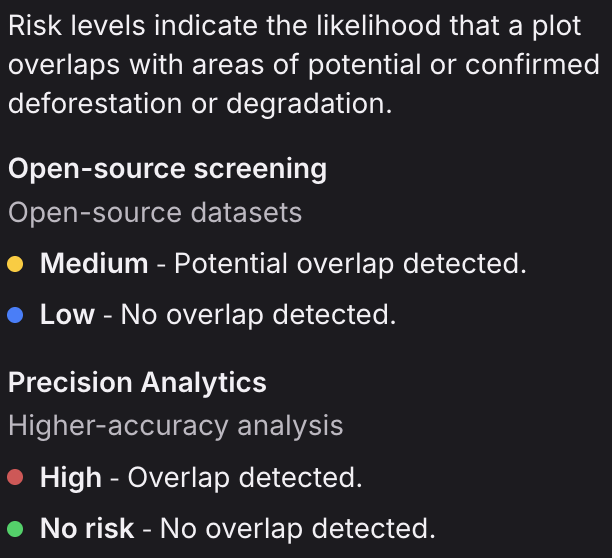
Open-source screening statuses in the webapp (Medium / Low)

In the webapp filters, Medium and Low refer to open-source screening only:

  • 🟡 Medium = Potential overlap detected The plot has any overlap with the open-source screening layers (e.g., Forest Cover and/or Tree Cover Loss). Note: Forest Type “Planted/Plantation forest” on its own does not count as a screening overlap signal.

  • 🔵 Low = No overlap detected The plot does not overlap with the open-source screening layers.

Precision Analytics statuses in the webapp (High / No risk)

In the same filter menu, High and No risk apply only to Precision Analytics (LiveEO’s proprietary analysis):

  • 🔴 High = Overlap detected (Precision found a relevant overlap)

  • 🔴 No risk = No overlap detected (Precision found no relevant overlap)


7) Known limitations

  • Signals, not proof: Open Source Checks help prioritize; they do not prove compliance/non-compliance on their own.

  • Boundary effects: Small overlaps can happen due to geometry and dataset resolution differences. Validate before concluding impact.

  • Multiple areas per plot: A single plot can contain a mix of different signals depending on where layers intersect.

  • Rollout/backfill: Some existing plots may not yet reflect the latest calculations across all layers until backfill is complete.


8) FAQ

Why might Timber show a “change signal” but still need context?

Because Timber interpretation depends on forest type. Loss in primary/naturally regenerating forest is treated as more sensitive than loss in a managed plantation context. The methodology uses forest type to provide that context.

Does tree cover loss always mean deforestation?

No. Tree cover loss is a satellite-detected change signal. It can have multiple causes and should be validated with supporting evidence.

Why do Timber plots use Forest Type?

Because for Timber, the same post-cutoff change can mean different things depending on whether the area was primary/naturally regenerating forest or plantation at the cutoff.

Last updated