> For the complete documentation index, see [llms.txt](https://docs.live-eo.com/tradeaware/llms.txt). Markdown versions of documentation pages are available by appending `.md` to page URLs; this page is available as [Markdown](https://docs.live-eo.com/tradeaware/using-the-tradeaware-web-app/provide-and-review-documents.md).
# Provide and Review Documents
## What is Document Management in TradeAware?
Document Management lets you and your suppliers document EUDR compliance through structured questionnaires and supporting file uploads. It replaces ad-hoc spreadsheets and email threads with one consistent, auditable workflow shared between buyers and their supply chain.
TradeAware currently supports three questionnaire types — including the default EUDR Due Diligence Questionnaire, which covers both EU and non-EU suppliers and is available to every account.
### :warning: Prerequisites
The **EUDR Due Diligence Questionnaire** is available to all TradeAware accounts at no extra charge — no entitlement required.
The two **CMS questionnaires** (CMS EU Supplier Questionnaire and CMS Non-EU Supplier Questionnaire) are premium and require a CMS entitlement on your account. If you'd like to use the CMS questionnaires and don't currently have access, contact your Customer Success Manager.
Suppliers can complete any questionnaire that has been sent to them by a connected buyer, regardless of their own account's entitlement.
## The Documents Page
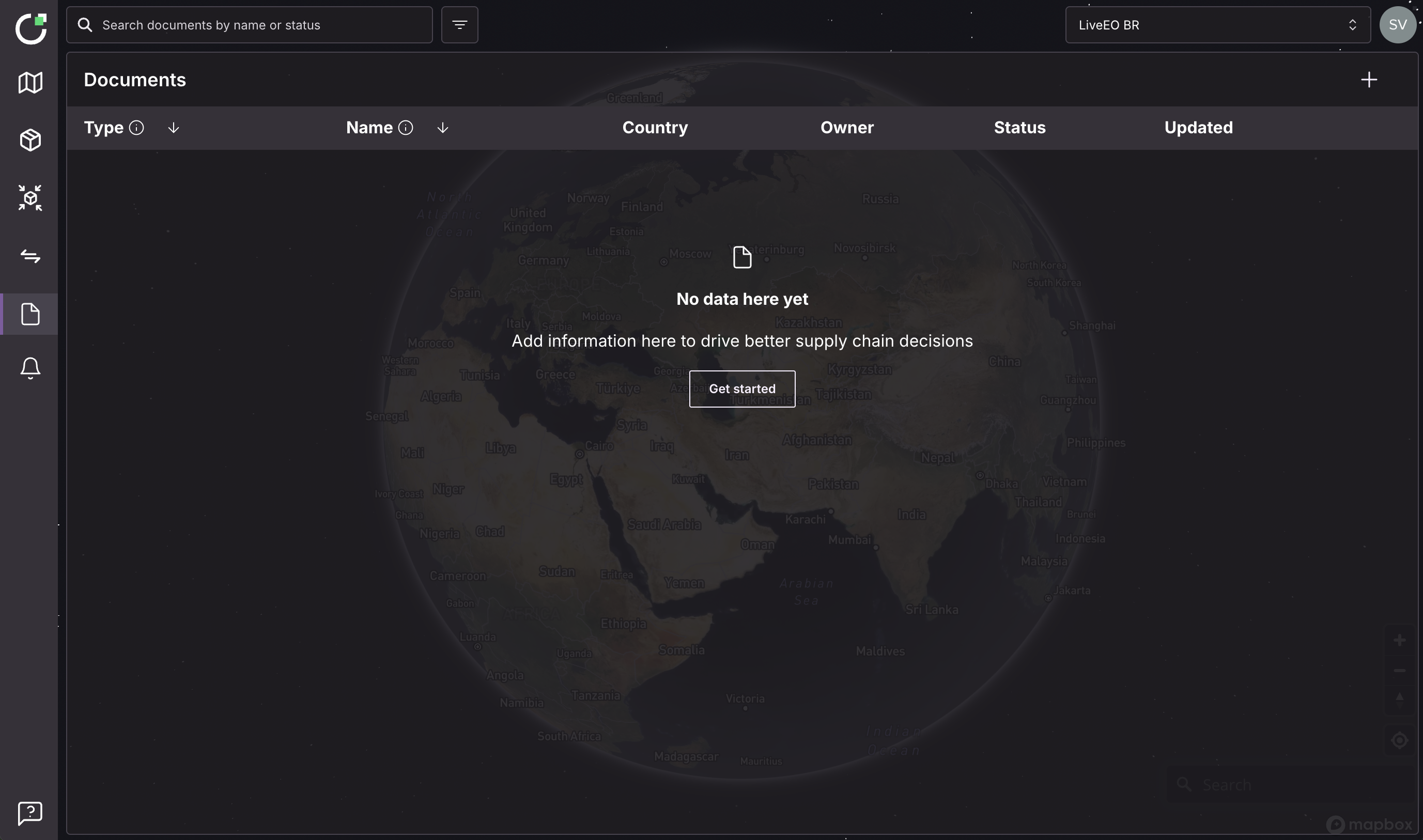
By selecting the Documents icon , you will navigate to the Document Management page.
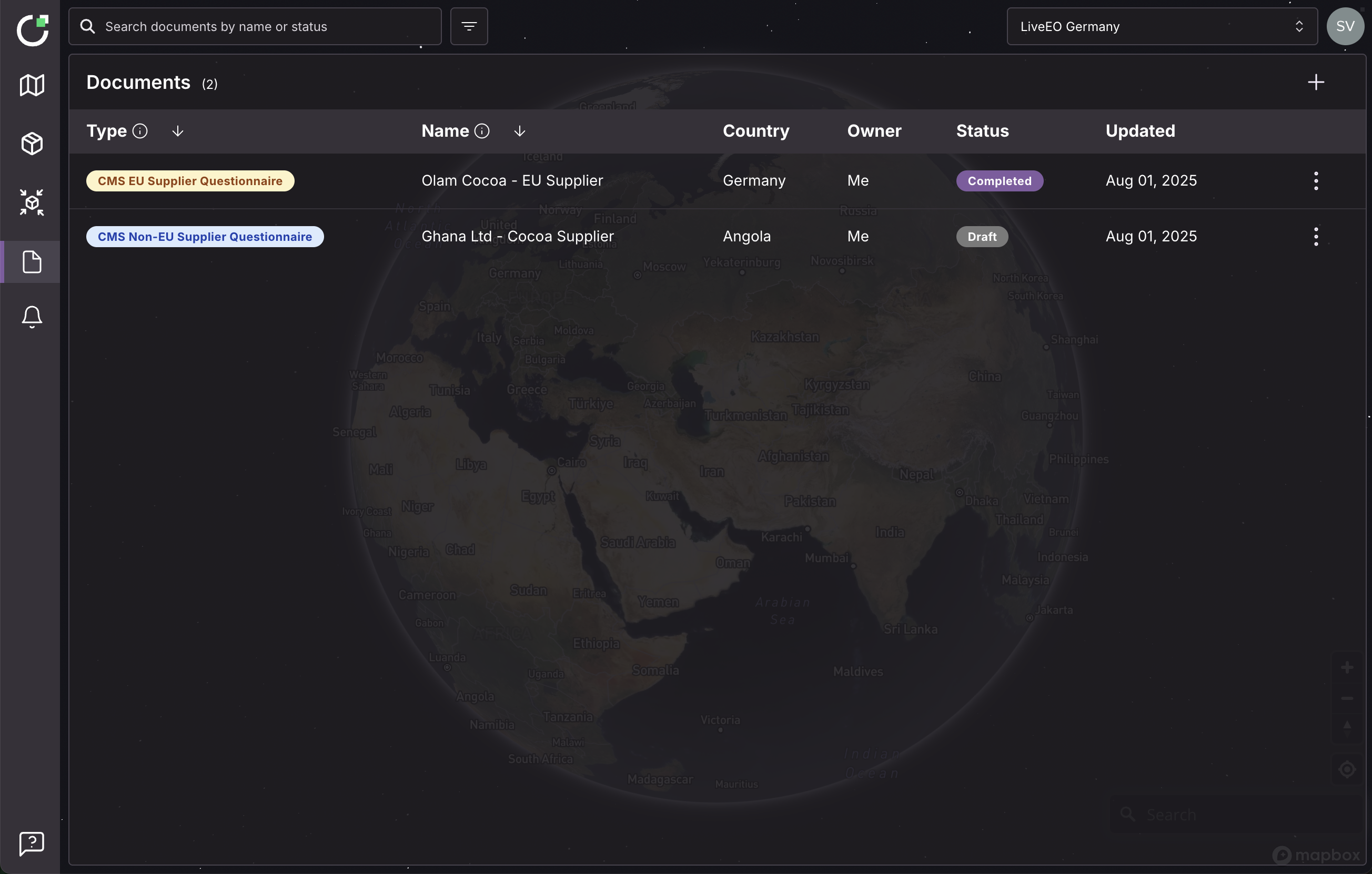
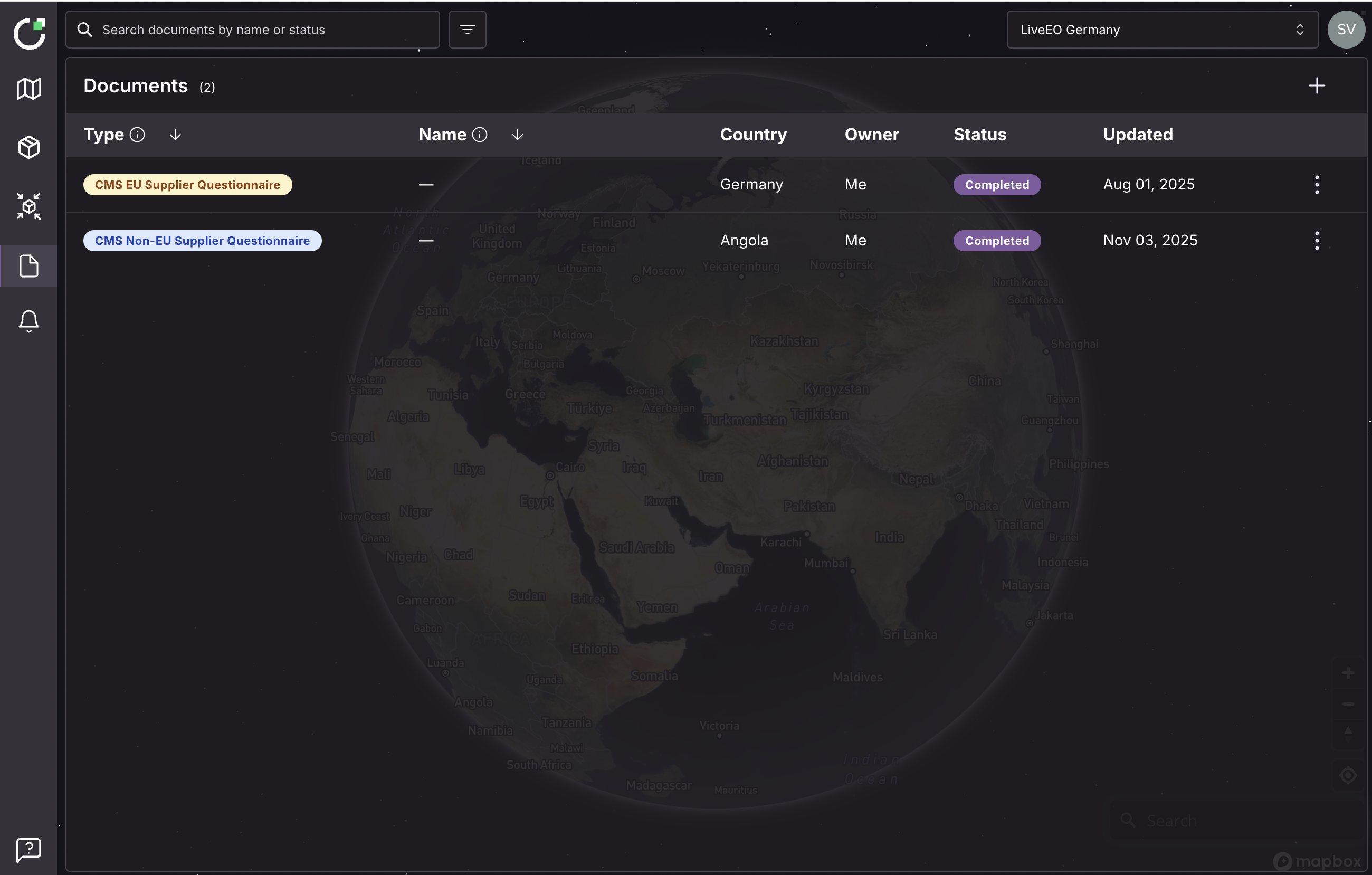
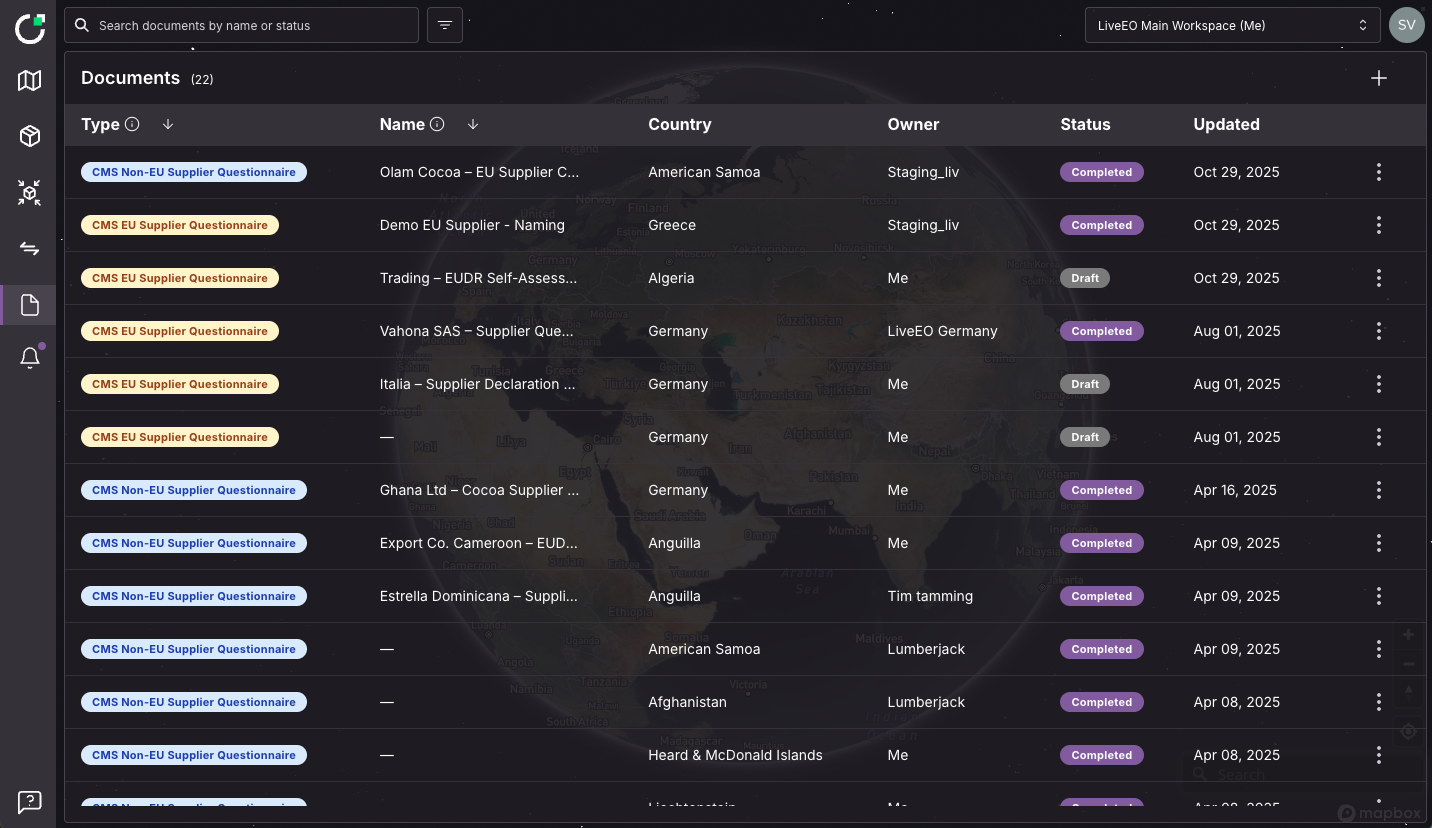
From here you can see a table of your uploaded questionnaires and those of our suppliers:
Here you can see a table of your uploaded questionnaires and those shared by your suppliers.\
Each row provides a snapshot of key details about a document:
* **Type** – Indicates whether the questionnaire is for an **EU Supplier** or **Non-EU Supplier** (displayed as a badge).\
Tooltip: “Indicates whether this is an EU or Non-EU supplier questionnaire.”
* **Name** (Supplier-provided) – An optional label the supplier can add when creating the questionnaire to help distinguish similar submissions.\
Tooltip: “Optional label provided by the responder. Shared with the questionnaire.”\
Default: “—” if not provided.
* **Country -** The sourcing country the questionnaire has been completed for.
* **Owner -** The business who owns the questionnaire response.
* **Status -** The status of the questionnaire. Either in draft or submitted. **Note:** Only submitted questionnaires are shared with buyers. Draft questionnaires are only visible to you.
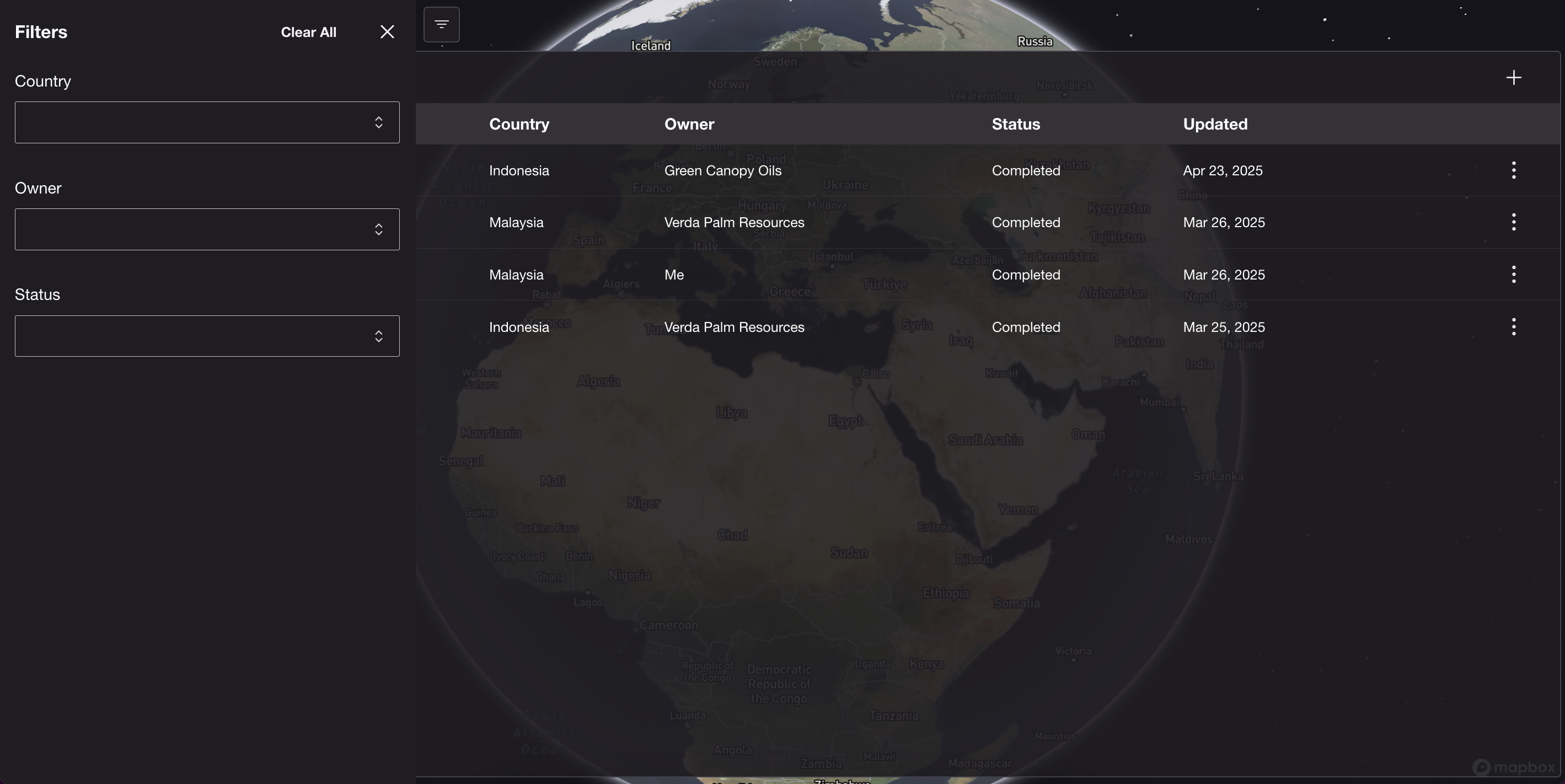
You can search documents name or status by using the search bar. You can also filter the table by selecting the filter icon at the top of the page for country, owner and status, including using multiple of these filter types simultaneously.
## **About the EUDR Due Diligence Questionnaire**
The EUDR Due Diligence Questionnaire is TradeAware's default supplier questionnaire. It is available to every account and covers both EU and non-EU suppliers, routing each supplier to the questions that apply to their EUDR role.
Coverage includes the three EUDR Article 13 Simplified Due Diligence criteria:
* Supply-chain complexity
* Risk of circumvention
* Mixed origin (between low-, standard-, and high-risk countries)
Together these give buyers a complete, auditable due diligence package without additional forms or external tools.
## Adding a Document
You can create a document response by selecting the at the top right of the table.
Choose one of the following questionnaire types:
* **CMS EU Supplier Questionnaire** *(premium)* – For suppliers of goods already inside the EU, where a due diligence statement exists. Use this to confirm that due diligence has already been completed.
* **CMS Non-EU Supplier Questionnaire** *(premium)* – For suppliers of goods not yet imported into the EU. Use this to collect information before goods enter the EU market.
* **EUDR Due Diligence Questionnaire** (default, available to all accounts as part of TradeAware) – A structured due diligence questionnaire covering both EU and non-EU suppliers. Profiling questions at the start route each supplier to the sections relevant to their EUDR role, and coverage includes the Article 13 Simplified Due Diligence criteria — supply-chain complexity, risk of circumvention, and mixed origin.
\**The correct questionnaire will open depending on your selection.*
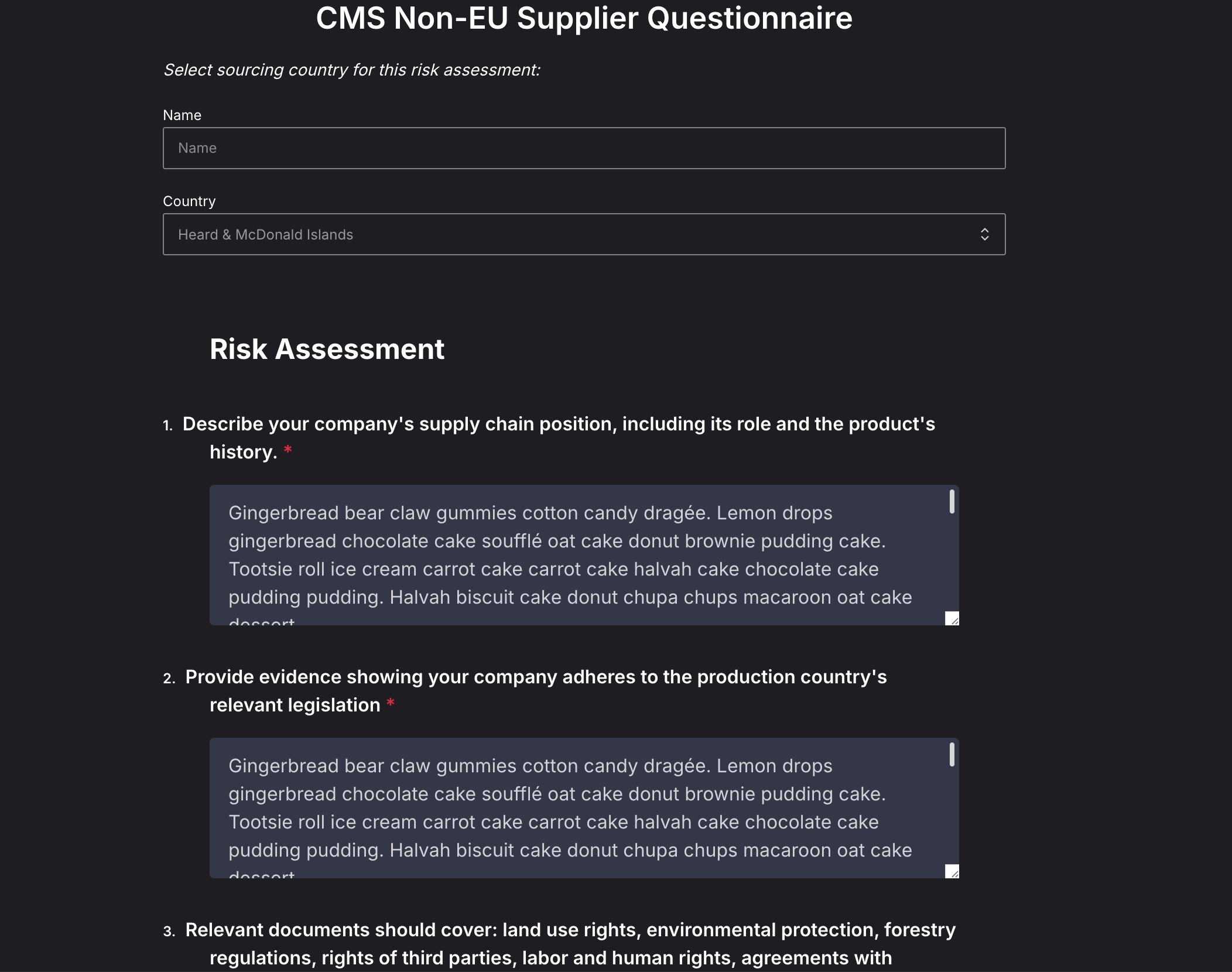
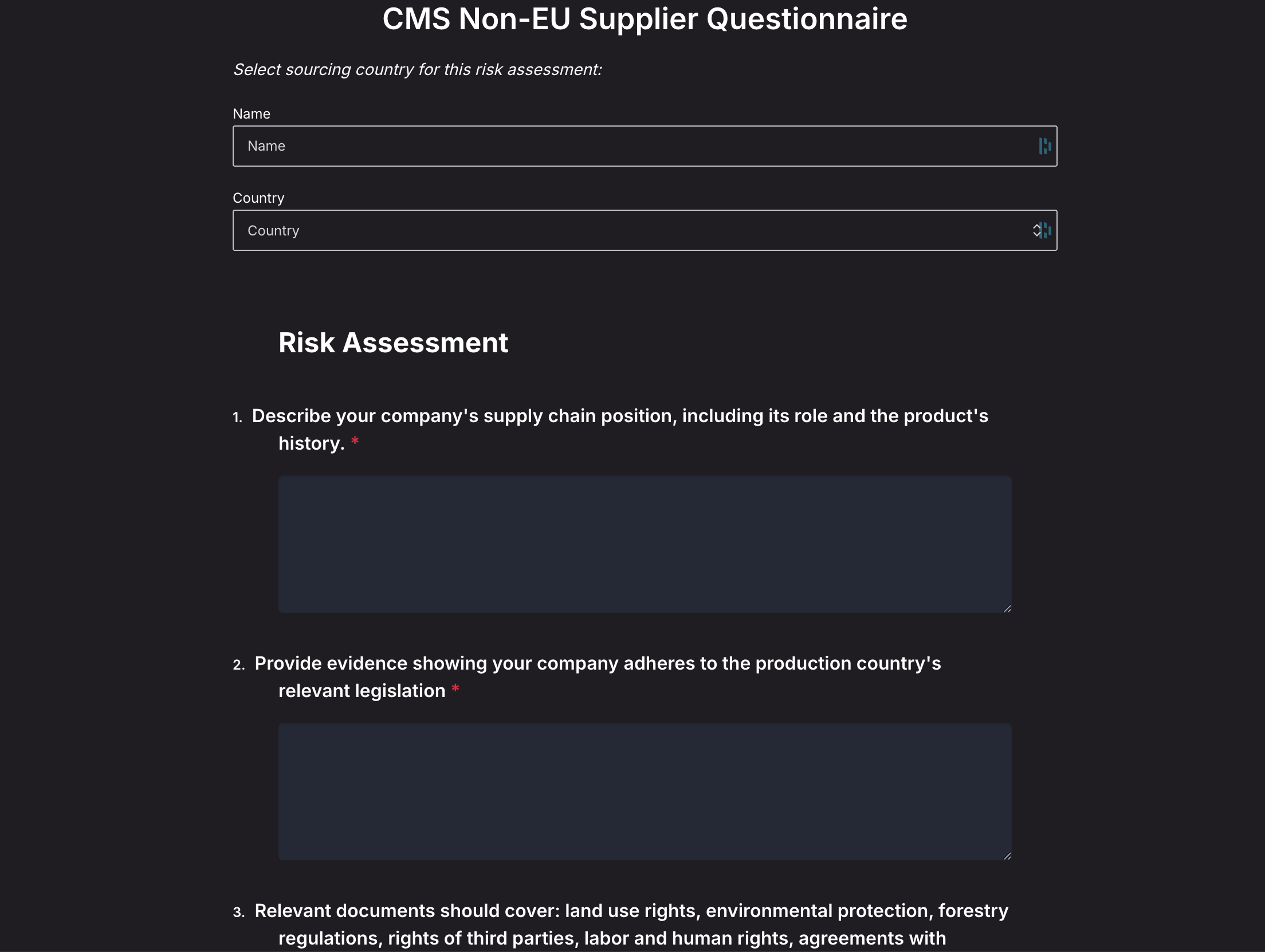
When creating a new questionnaire, you’ll need to specify a custom **Name** field. This field allows you to provide a short, custom label to help you and your buyers identify the questionnaire later in the Documents table.
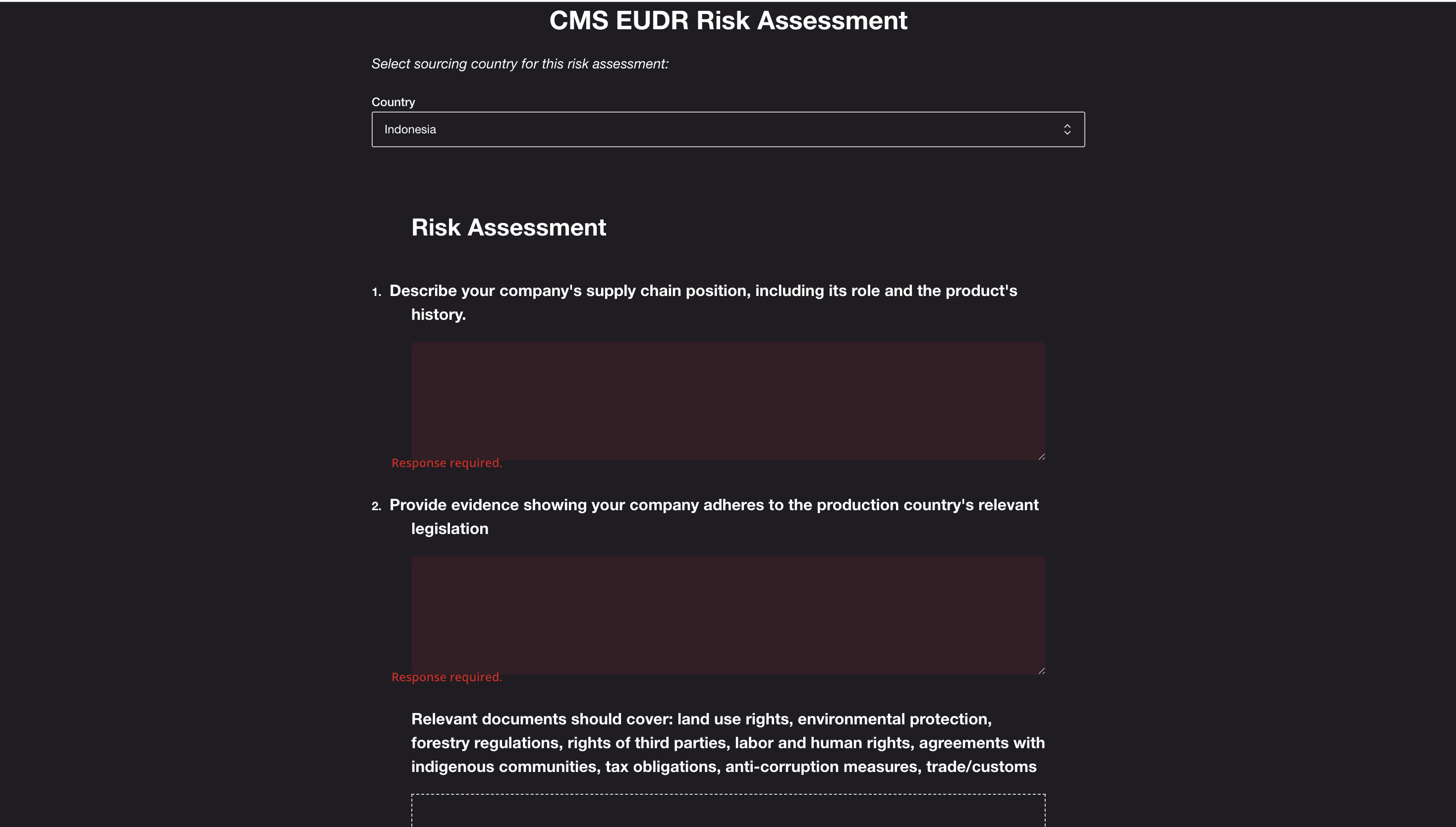
Then, you will need to specify sourcing country and complete the questions provided and upload documents where relevant.
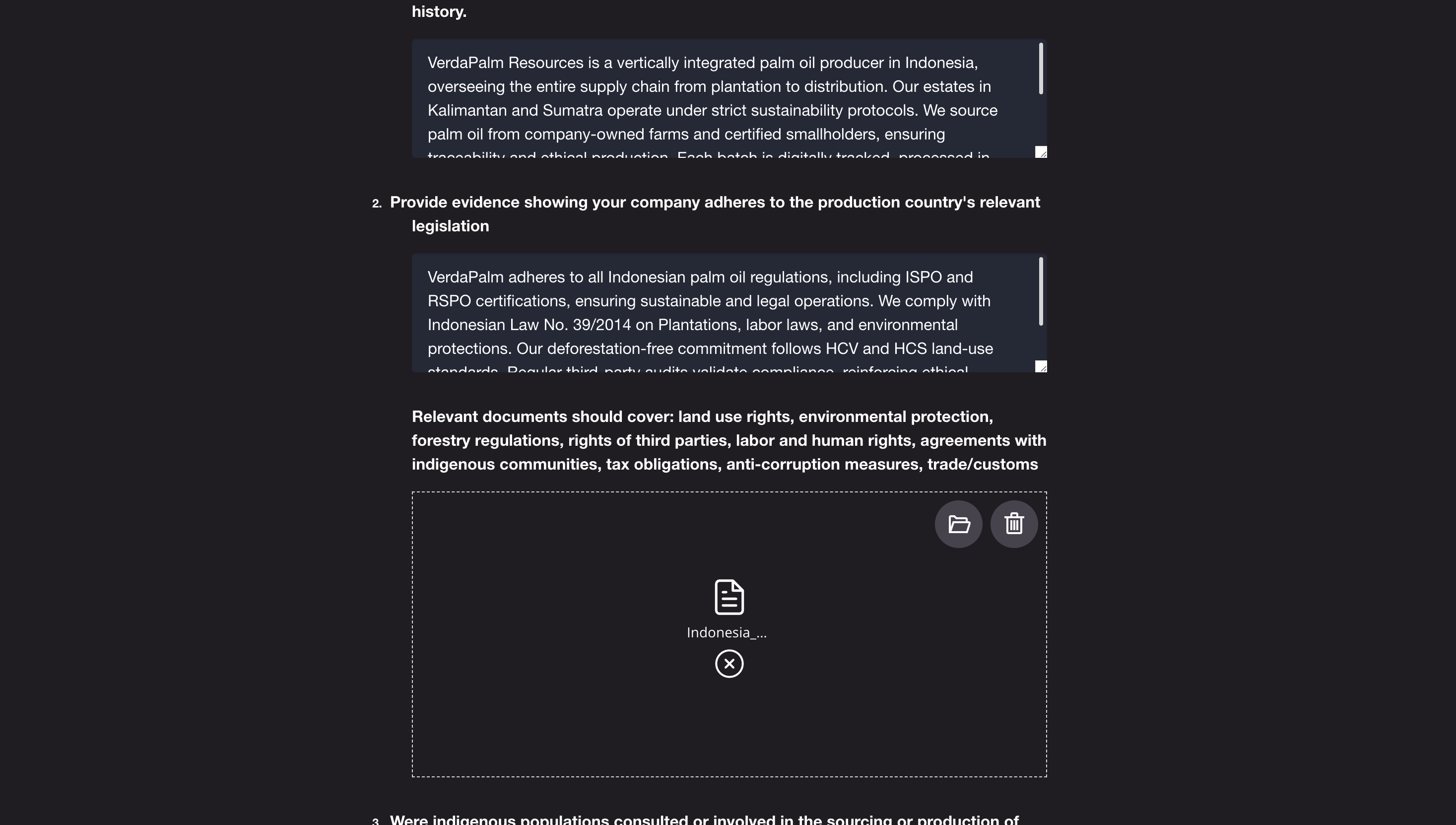
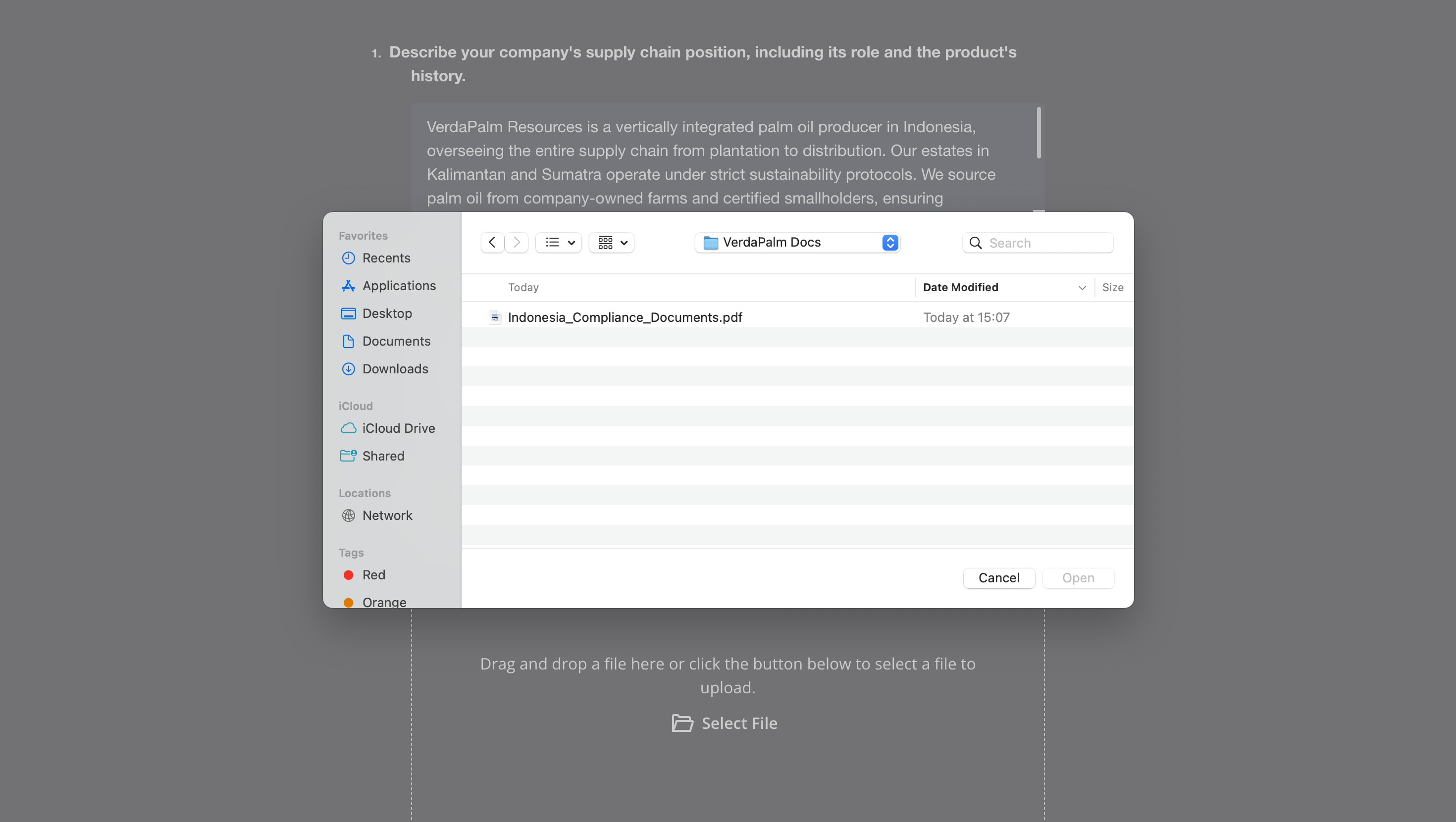
Where a question has a document upload, you can either drag and drop files in or select a file to upload. **Note:** Only the following document formats are supported currently for upload: PDF, JPG, PNG, DOCX, XLSX, TIFF, HEIC, CSV, TXT and RTF. The maximum file size per document is 200mb.
After you have uploaded a document, you can remove it by pressing the trashcan or select a new file by using the file selector icon It is also possible to upload multiple files at once.
Some questions are conditional and by answering in a certain way you may see more questions or requests for comment.
At the end of the page, you will see the options to Close without saving the responses or to Save & Close.
If you try to save without completing questions with required responses, you will see the error response required.
Once you have successfully Saved your survey, you will remain on the page and see the option to close the document as a draft or submit it. **Note: When you press submit, your buyer will be able to see the Document.**
If you close, you will be able to see in the Document in Draft status. By selecting the ellipsis next to the Document in the table, you can edit the response including Submitting it.
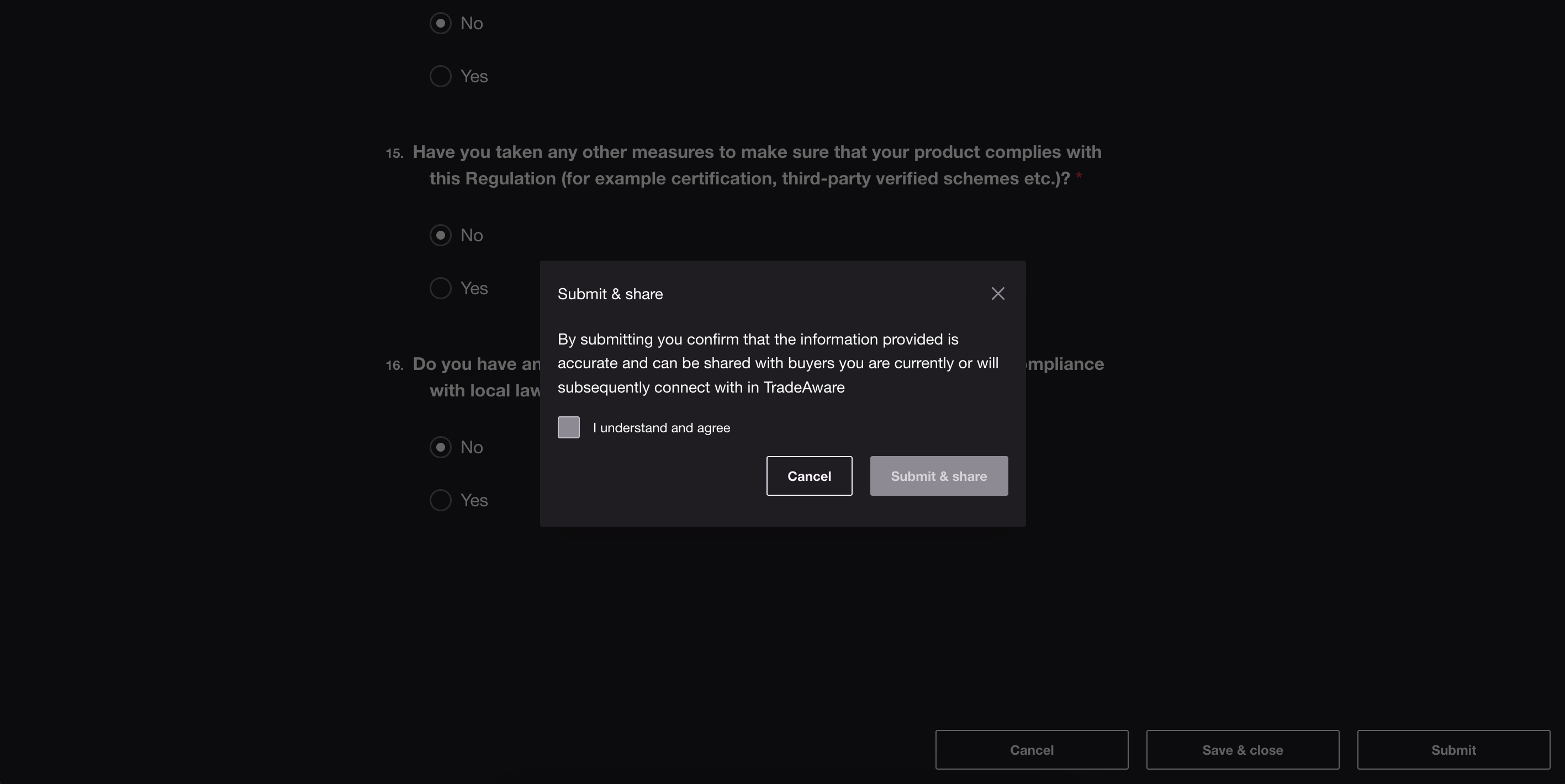
If you select Submit, you will be asked to confirm that the data is correct and ready to share with your current and future connected buyers.
The Document will then show in the table as Completed.
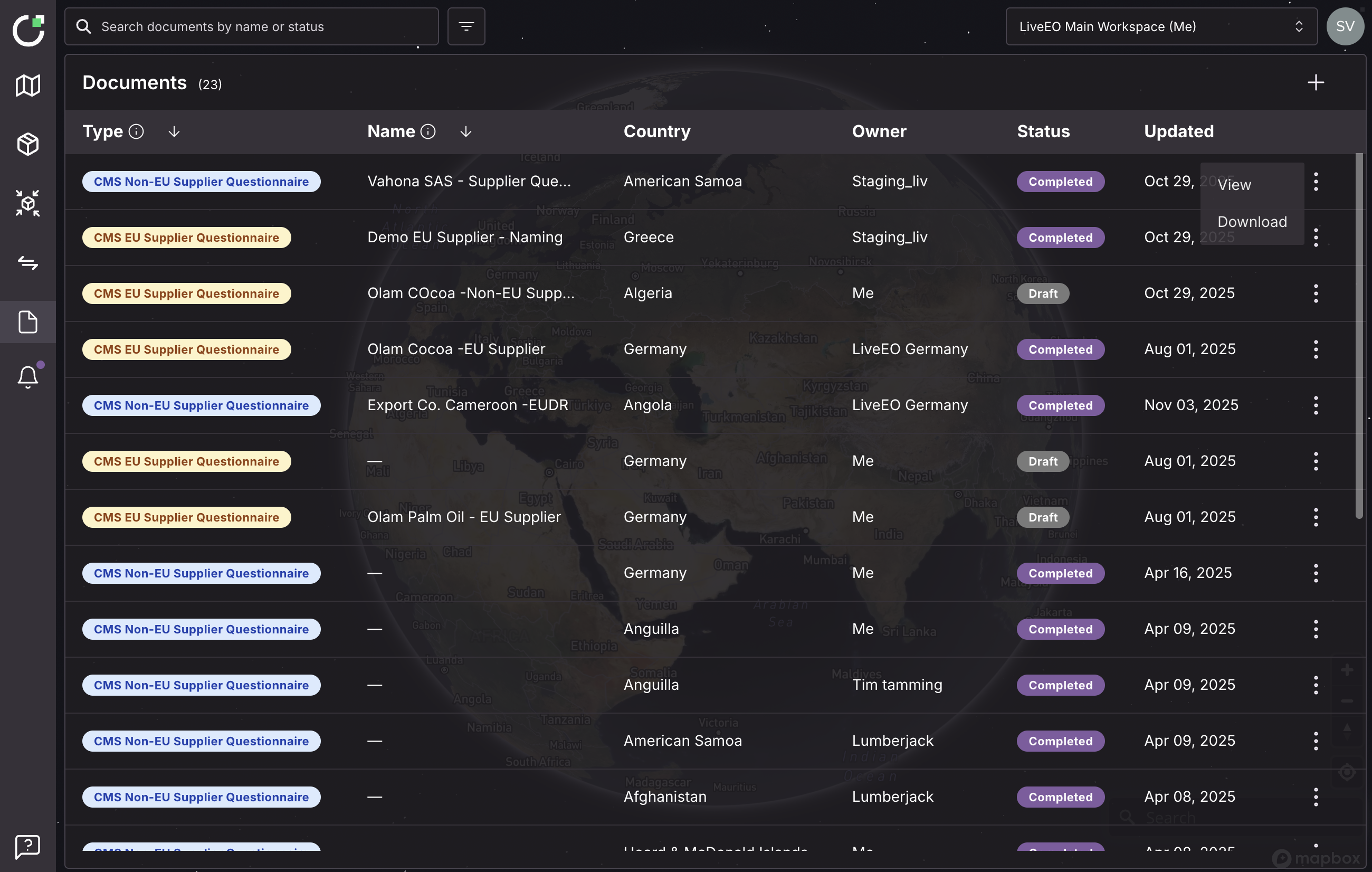
By selecting the ellipsis menu (`⋮`), you can:
* **View** the response in read-only mode
* **Download** the document and any uploads, all of which have been scanned for malware.
## Viewing Your Supplier's Documents
When your supplier has Submitted a Document, you will be able to see this in your Documents Page with the name of the Supplier as the owner of the document.
By selecting the ellipsis, you can either view the response or download it and all uploaded documents which have been subject to virus scanning by the TradeAware system.
In view mode, you will be able to see the responses to the questions in uneditable format.
---
# Agent Instructions
This documentation is published with GitBook. GitBook is the documentation platform designed so that both humans and AI agents can read, navigate, and reason over technical content effectively. Learn more at gitbook.com.
## Querying This Documentation
If you need additional information that is not directly available in this page, you can query the documentation by asking a question.
Perform an HTTP GET request on the following URL with the `ask` and `goal` query parameters:
```
GET https://docs.live-eo.com/tradeaware/using-the-tradeaware-web-app/provide-and-review-documents.md?ask=&goal=
```
`ask` is the immediate question: it should be specific, self-contained, and written in natural language.
`goal` is what the user is ultimately trying to achieve, the reason they need the answer. Sharing it helps GitBook give you a better, more relevant answer. A goal is most helpful when it describes the outcome the user wants rather than restating the question. For example, with `ask=how do I create an API token`, a goal like `automate deployments from our CI pipeline` lets GitBook tailor the answer to that use case.
The response will contain a direct answer to the question and relevant excerpts and sources from the documentation.
Use this mechanism when the answer is not explicitly present in the current page, you need clarification or additional context, or you want to retrieve related documentation sections.
 , you will navigate to the Document Management page.
 at the top of the page for country, owner and status, including using multiple of these filter types simultaneously.
 at the top right of the table.
Choose one of the following questionnaire types:
* **CMS EU Supplier Questionnaire** *(premium)* – For suppliers of goods already inside the EU, where a due diligence statement exists. Use this to confirm that due diligence has already been completed.
* **CMS Non-EU Supplier Questionnaire** *(premium)* – For suppliers of goods not yet imported into the EU. Use this to collect information before goods enter the EU market.
* **EUDR Due Diligence Questionnaire** (default, available to all accounts as part of TradeAware) – A structured due diligence questionnaire covering both EU and non-EU suppliers. Profiling questions at the start route each supplier to the sections relevant to their EUDR role, and coverage includes the Article 13 Simplified Due Diligence criteria — supply-chain complexity, risk of circumvention, and mixed origin.
\**The correct questionnaire will open depending on your selection.*
at the top right of the table.
Choose one of the following questionnaire types:
* **CMS EU Supplier Questionnaire** *(premium)* – For suppliers of goods already inside the EU, where a due diligence statement exists. Use this to confirm that due diligence has already been completed.
* **CMS Non-EU Supplier Questionnaire** *(premium)* – For suppliers of goods not yet imported into the EU. Use this to collect information before goods enter the EU market.
* **EUDR Due Diligence Questionnaire** (default, available to all accounts as part of TradeAware) – A structured due diligence questionnaire covering both EU and non-EU suppliers. Profiling questions at the start route each supplier to the sections relevant to their EUDR role, and coverage includes the Article 13 Simplified Due Diligence criteria — supply-chain complexity, risk of circumvention, and mixed origin.
\**The correct questionnaire will open depending on your selection.*

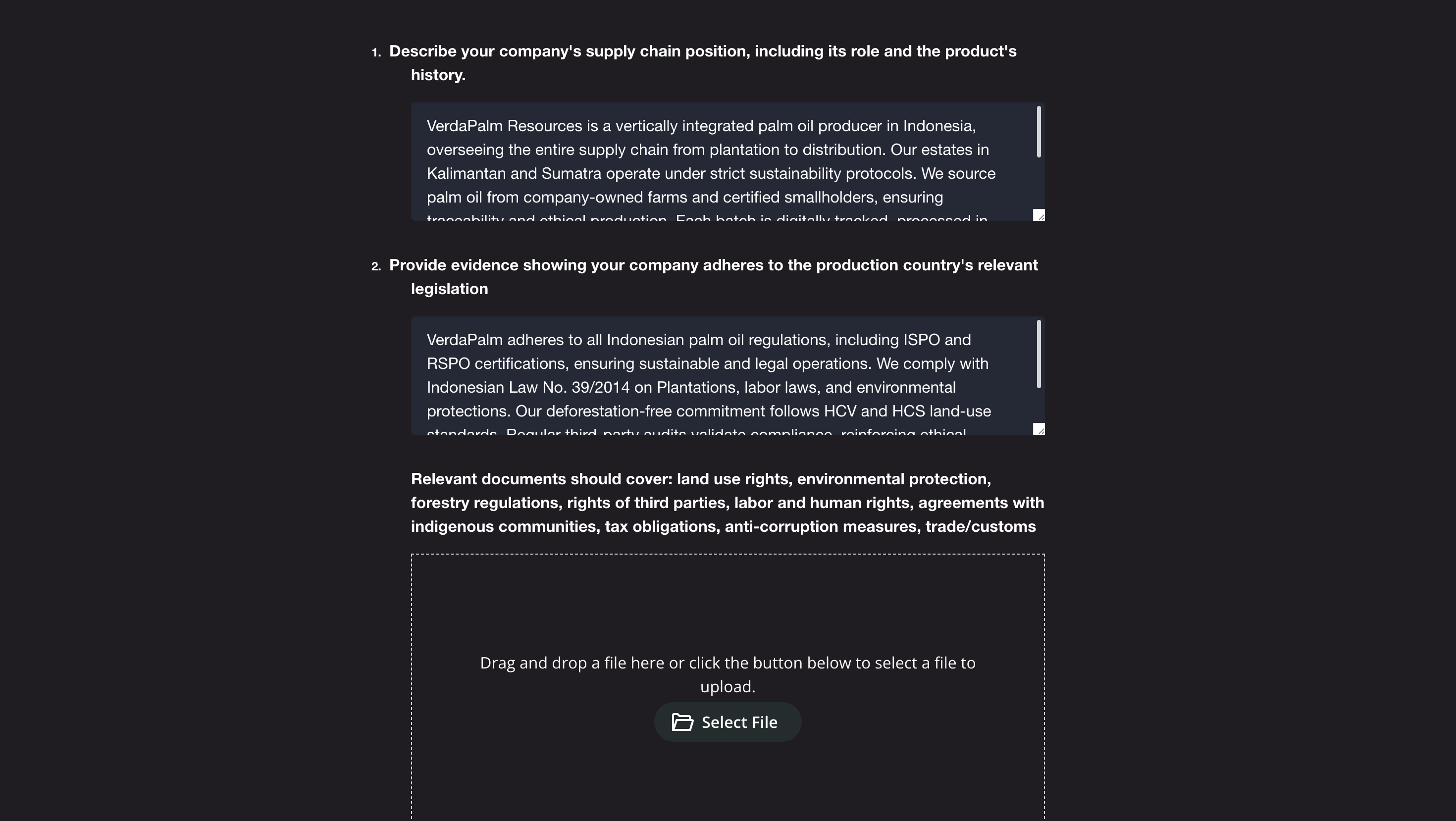
 or select a new file by using the file selector icon
  It is also possible to upload multiple files at once.