> For the complete documentation index, see [llms.txt](https://docs.live-eo.com/surfacescout/llms.txt). Markdown versions of documentation pages are available by appending `.md` to page URLs; this page is available as [Markdown](https://docs.live-eo.com/surfacescout/review-cases.md).
# Review Cases
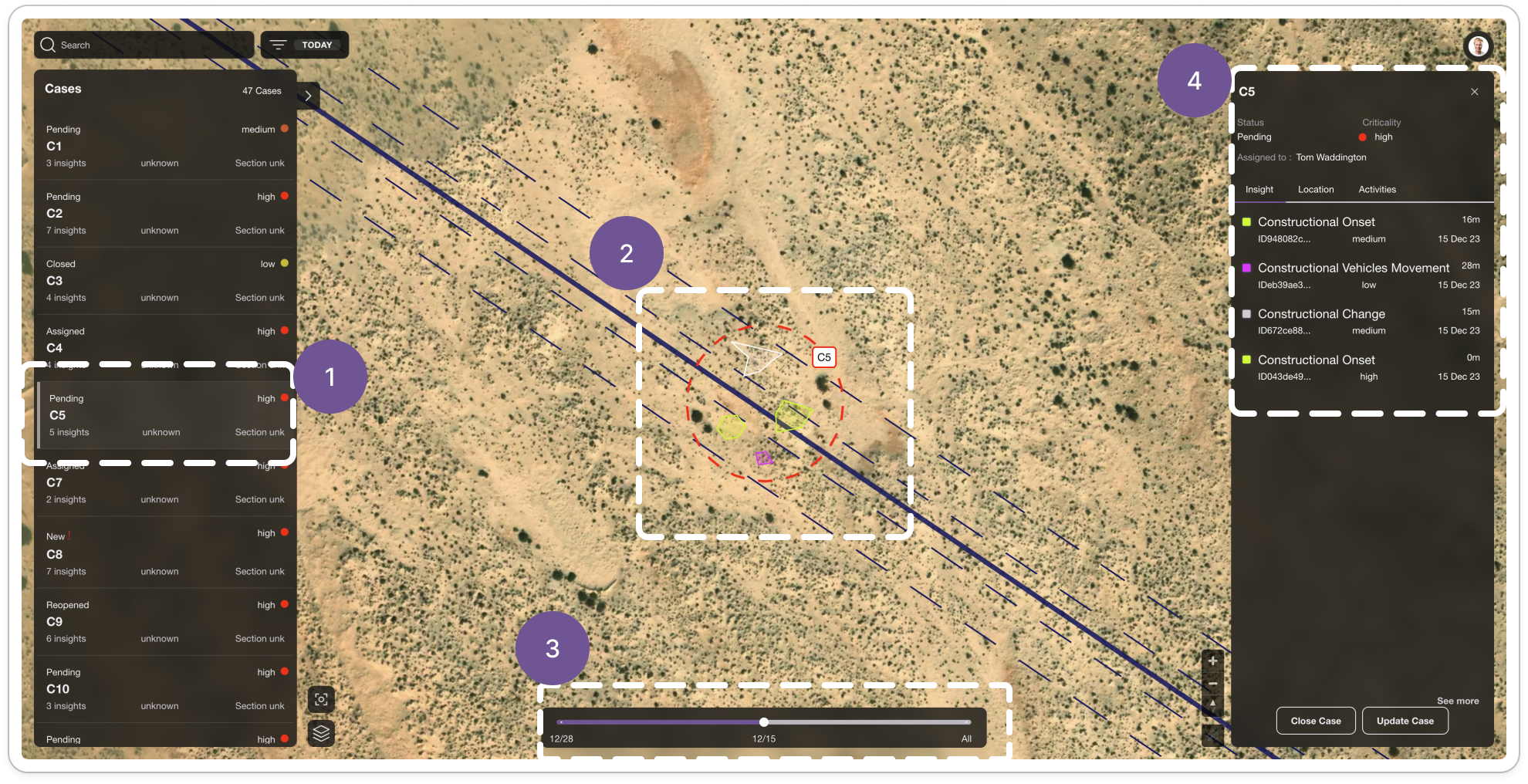
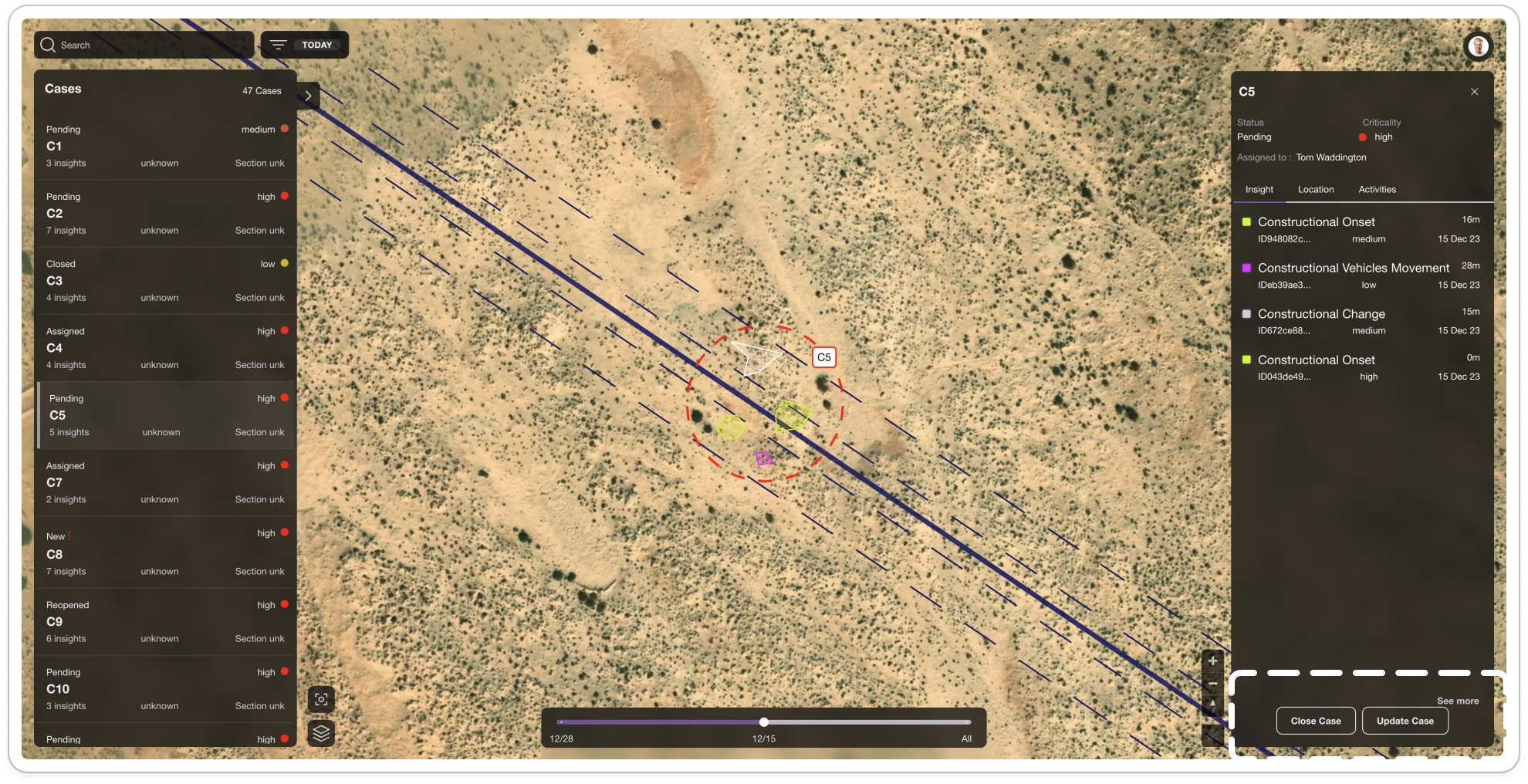
The big picture to get you started
1. **Select the Case**: Begin by selecting the specific case you want to review.
2. **View Insights on the Map**: All insights for the selected time step are visualized on the map, aggregated under the C5 case.
3. **Explore other time steps**: To view insights from other time steps, simply move the cursor to the desired position.
4. **Case details:** visualise Case details in this section
Deep dive into Case review
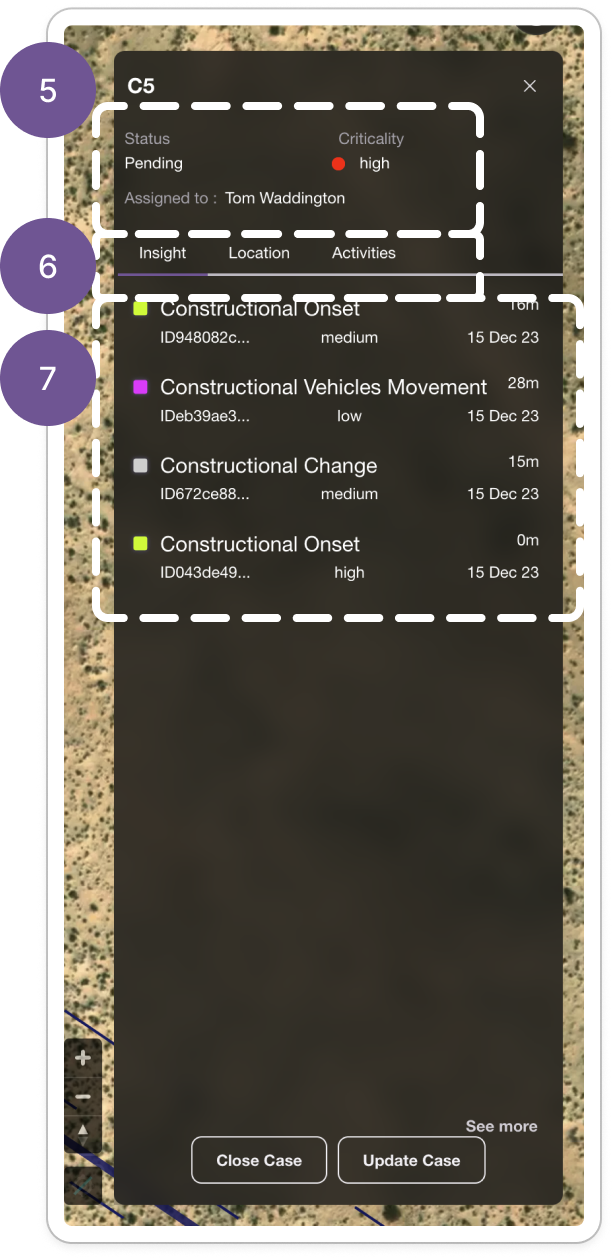
### Case details section
5. Here you will find:
* **Status**: Indicates the current state of the Case—New, Pending, In Progress, Escalated, Closed, or Reopened. More information is available in the [Case LifeCycle](/surfacescout/review-cases/case-lifecycle.md)page
* **Criticality Level**: Shows the case's priority level—High, Medium, or Low. More information is available in the [Defining the risk model around your pipeline](/surfacescout/configuration/defining-the-risk-model-around-your-pipeline.md)page
* **Assigned To**: Displays the person responsible for managing this case.
6. 3 tabs:
* **Insights**: Displays all individual insights from the selected time step on the slider. To view additional insights, click “See more” button
* **Location**: Shows the GPS coordinates along with a link to view the location on Google Maps.
* **Activities**: Logs all changes to the case, including updates to assignees, status, notes, photos, and more.
7. Every individual insights from a the selected time step on the slider
Case detail view
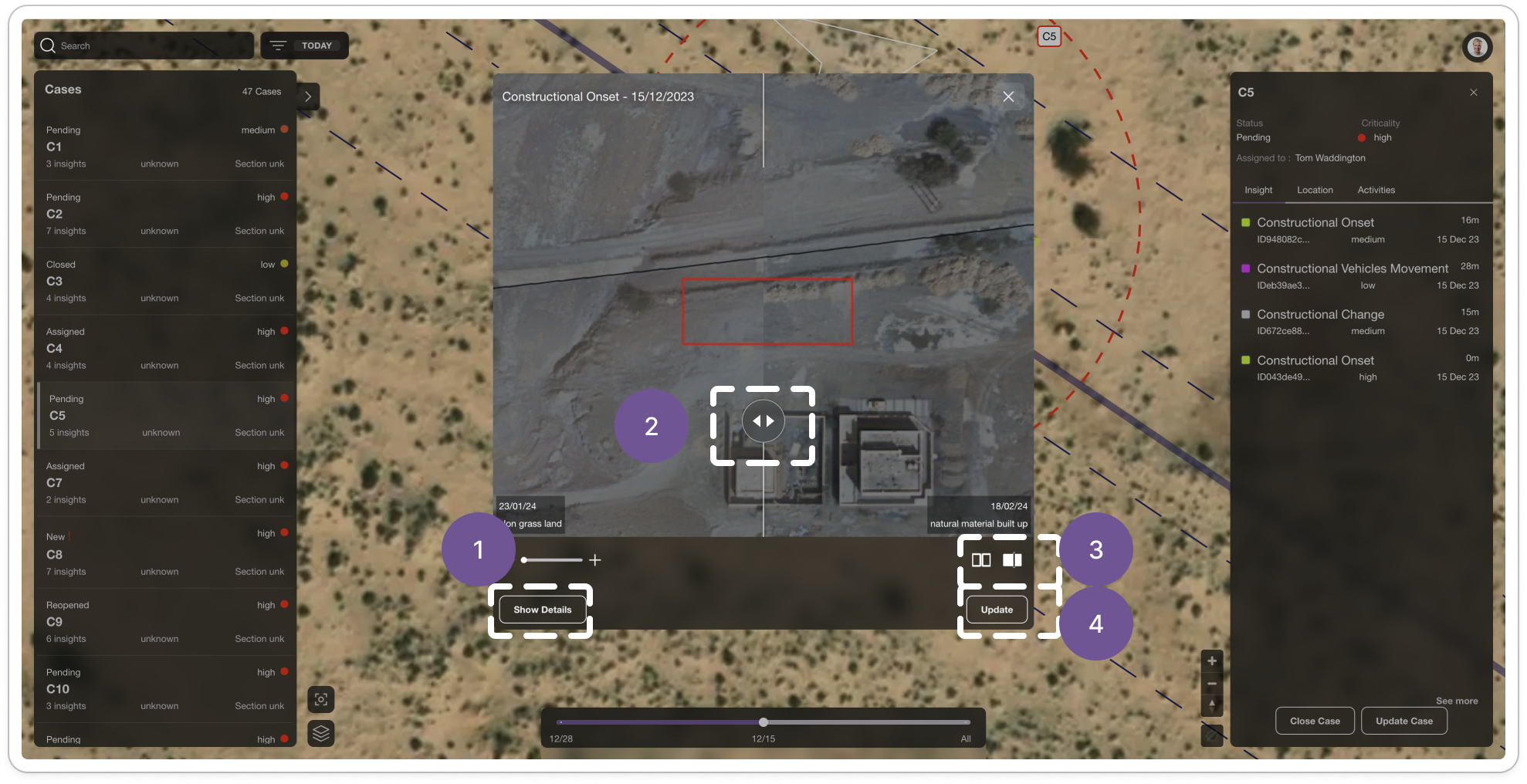
### Insight review
1. Explore the details of this insight, including its exact location, type of change, and criticality level.
2. Use the slider to review changes between time steps
3. Switch to other views, like side-by-side, for a clearer comparison.
4. You can also add more information or make updates to this insight for greater accuracy.
Insight viewer
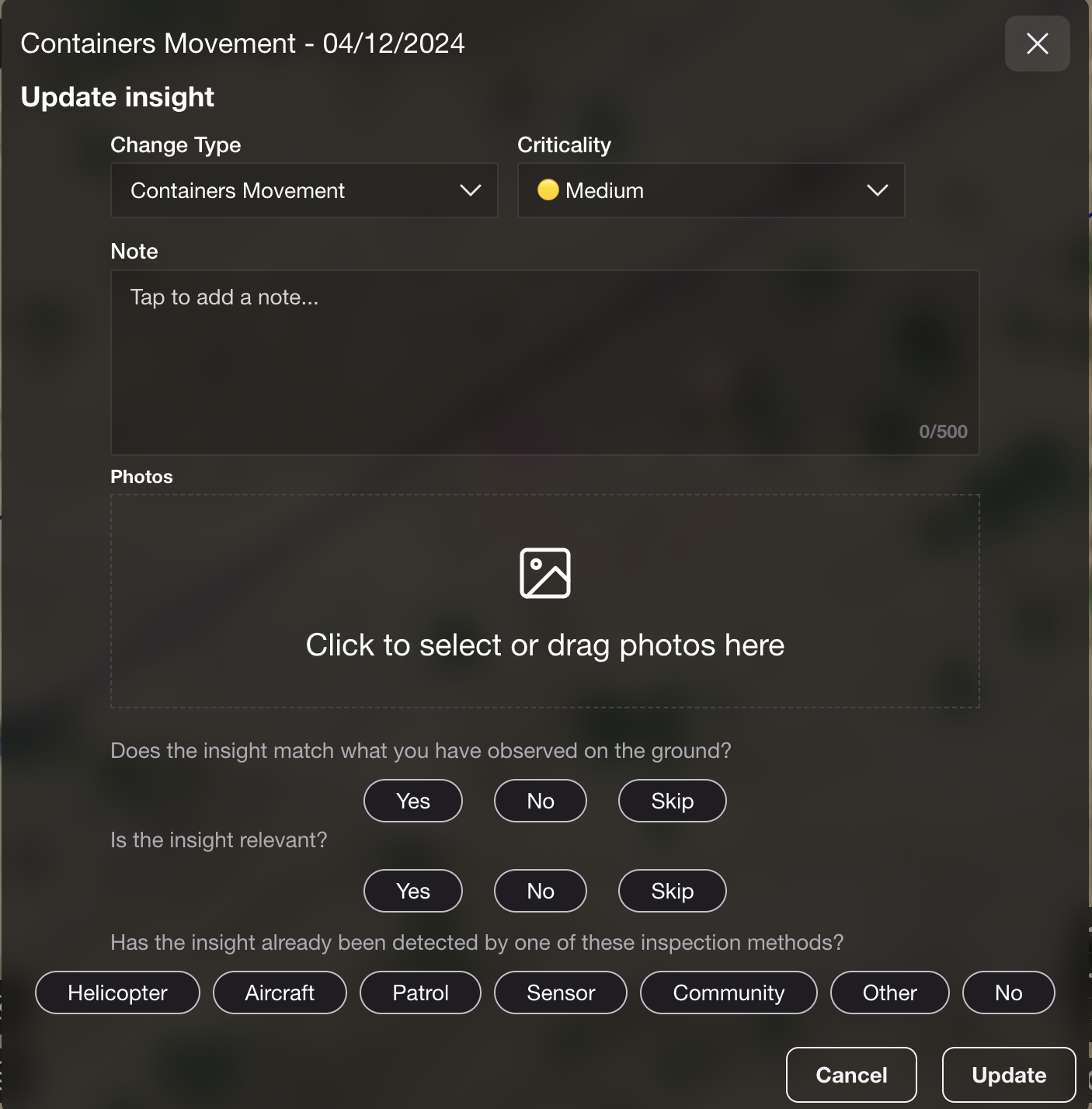
You can for example change the different attribute values, add a note, add some photos and give some crucial feedback to improve the solution! We will tell you more on this last aspect in the [Measuring Success](/surfacescout/measuring-success.md)page
Update and feedback insight view
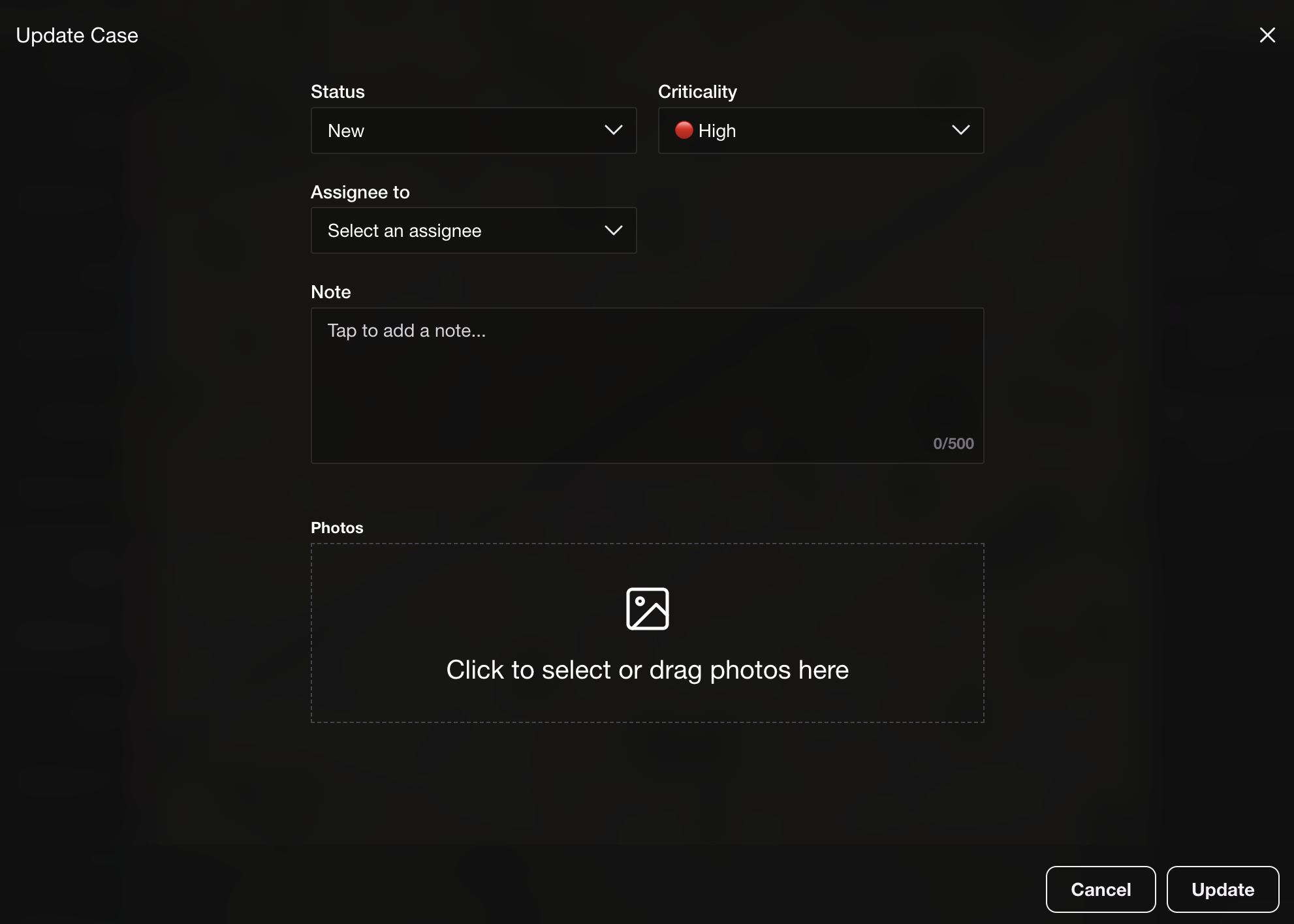
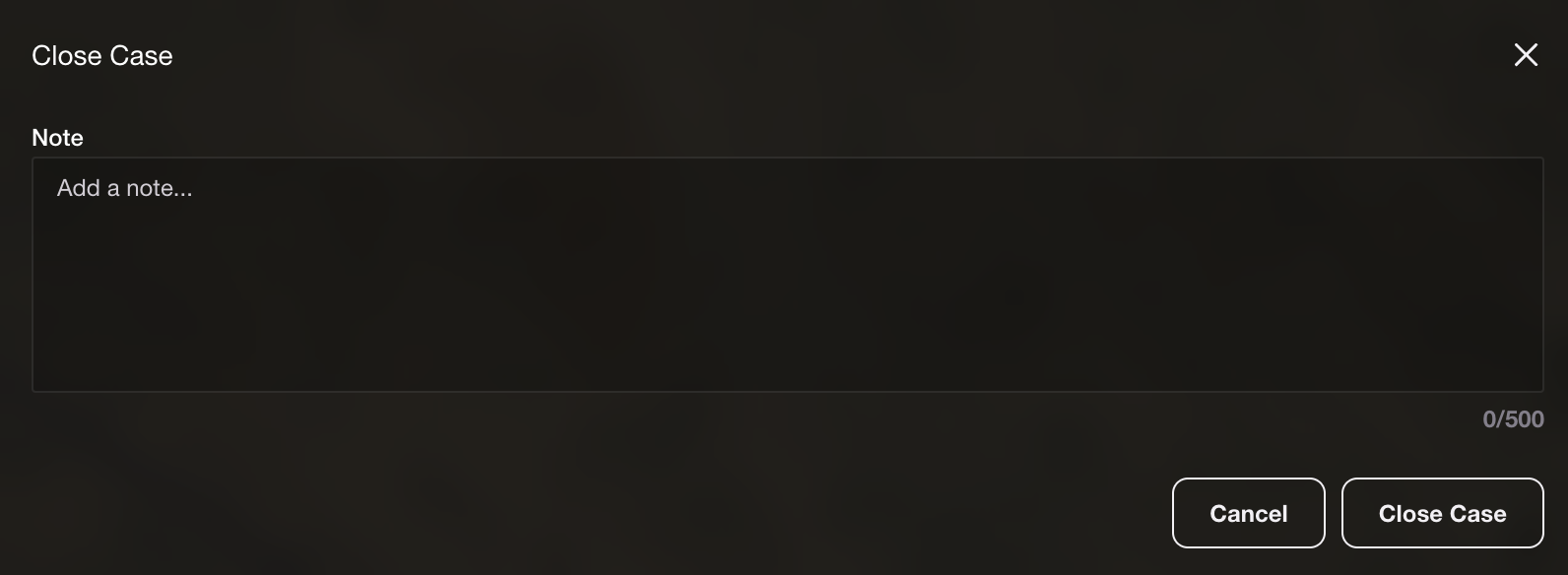
Once you have reviewed and updated every insight, you can **Update** or **Close** the case:
You can add notes or photos at the case level, which will appear in the **Activity** section. If you need additional information or wish to continue tracking this case, consider updating the status to “In Progress” or another appropriate status.
Or close it if everything is good
Congratulations, you have just reviewed and processed your first Case!
but WAIT! It looks like you need more information from the field to clarify one Case, time to put your boots and jump into the truck and have a look to the next page!
---
# Agent Instructions
This documentation is published with GitBook. GitBook is the documentation platform designed so that both humans and AI agents can read, navigate, and reason over technical content effectively. Learn more at gitbook.com.
## Querying This Documentation
If you need additional information that is not directly available in this page, you can query the documentation by asking a question.
Perform an HTTP GET request on the following URL with the `ask` and `goal` query parameters:
```
GET https://docs.live-eo.com/surfacescout/review-cases.md?ask=&goal=
```
`ask` is the immediate question: it should be specific, self-contained, and written in natural language.
`goal` is what the user is ultimately trying to achieve, the reason they need the answer. Sharing it helps GitBook give you a better, more relevant answer. A goal is most helpful when it describes the outcome the user wants rather than restating the question. For example, with `ask=how do I create an API token`, a goal like `automate deployments from our CI pipeline` lets GitBook tailor the answer to that use case.
The response will contain a direct answer to the question and relevant excerpts and sources from the documentation.
Use this mechanism when the answer is not explicitly present in the current page, you need clarification or additional context, or you want to retrieve related documentation sections.